EasyBlog is not compatible with current Joomla versions.
It appears that the EasyBlog tool is no longer being developed. StackIdeas Private Limited released EasyBlog version 6.0.18 for Joomla 3 and Joomla 4 at the beginning of the year. Version 6.0.9, dated September 28, 2022, is still listed in the Joomla! Extensions Directory (JED).
Strange because
Support for Joomla 3 ended on August 17, 2023.
Support for Joomla 4 ended on October 15, 2025.
We found no information about an update to the current Joomla version 6.x. Inquiries regarding this have gone unanswered.
We support several clients who use EasyBlog and are unable to update from Joomla 4 to a current version 5 or 6. Often, the operators of such Joomla websites have published hundreds of articles on their EasyBlog.
A manual migration to Joomla 5 or Joomla 6 is very complex, time-consuming, and not easily feasible for SEO reasons. With a simple manual migration, the links to the pages listed in search engines will lead to dead ends.
Furthermore, it must be taken into account that switching from Joomla 3 or 4 to a current Joomla 5 or 6 version is a migration. These are complex and require careful planning and expertise.
If you have a Joomla 4 installation, you can update it to Joomla 5.3.2, provided you have the necessary expertise. An update to the next higher or current Joomla 5 version is not possible.
The current Joomla versions 5 and especially 6 are ideally suited for use with EasyBlog. An example using Joomla 6.x can be found here.
Our software solution is called: EBW_EasyExit2Native:
We tackled the problem and developed the tool EBW_EasyExit2Native, which can transfer all necessary categories, articles, menu items, and users from EasyBlog to Joomla. Menu items are also taken into account and recreated accordingly.
To ensure that the links important for SEO in search engines like Google do not lead to dead ends, EBW_EasyExit2Native also creates the necessary redirects in the corresponding Joomla component.
EBW_EasyExit2Native offers two implementation options
Option one
The tool EBW_EasyExit2Native is compatible with all Joomla versions higher than 4.4.14 and EasyBlog. Since EasyBlog logic in version 6 offers significantly more design options, an update to Joomla 6 is strongly recommended after transferring the EasyBlog data.
EasyBlog version 6.0.18 is compatible with Joomla versions up to 5.3.2. Therefore, users still running an older Joomla version 5 with EasyBlog can easily perform the transfer using EBW_EasyExit2Native.
Option two
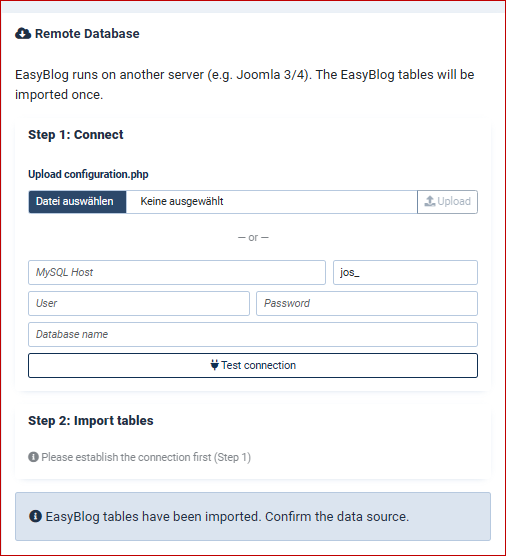
The EBW_EasyExit2Native tool allows you to transfer EasyBlog data from another Joomla installation, for example, to a current Joomla 6 installation. The necessary access credentials for the remote database can be entered in the EBW_EasyExit2Native options.
System requirements
- Joomla: 4.4.14 max. 5.3.2
- PHP: >= 8.0 max. 8.3
- MySQL: >= 8.0
Healthy database
No manual changes may be made to the category, menu, or data structure in the existing Joomla installation. All adjustments must be made using EBW_EasyExit2Native.
EBW_EasyExit2Native Installation and Configuration
Installation is done via the Joomla Extension Manager.
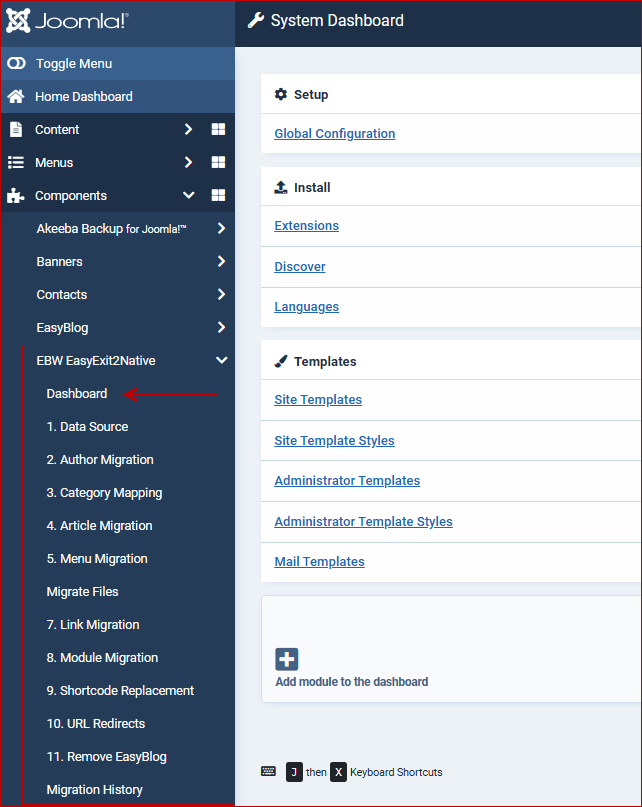
In the next step, we will start the EBW_EasyExit2Native dashboard.
EBW_EasyExit2Native Dashboard
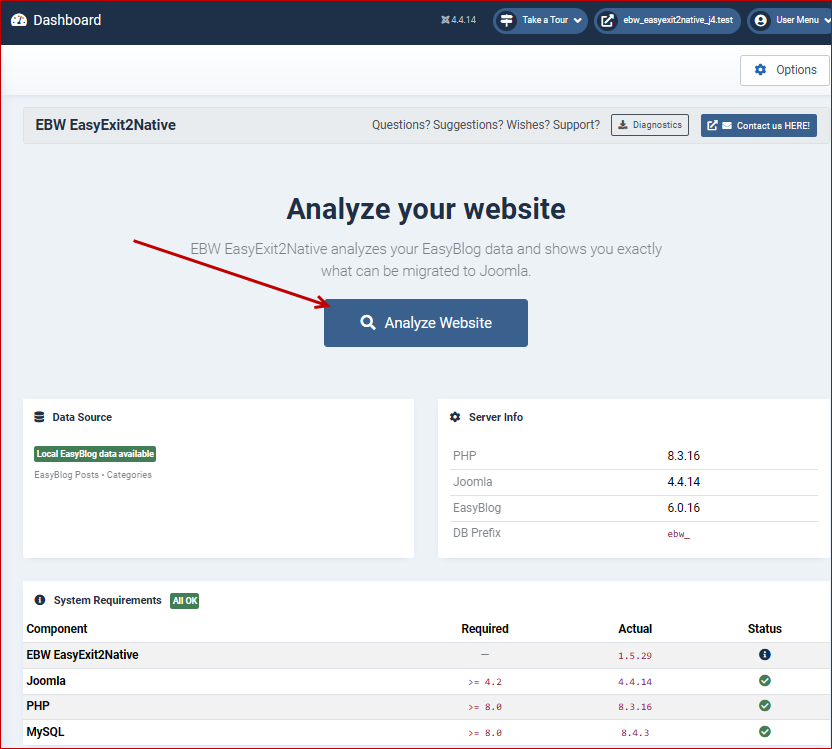
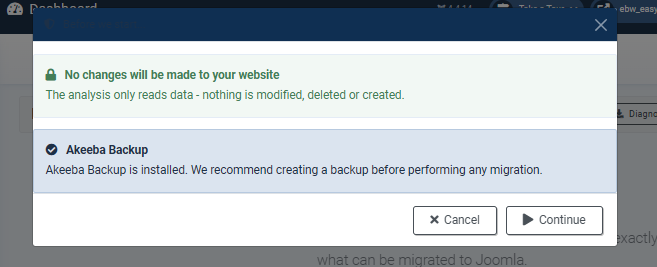
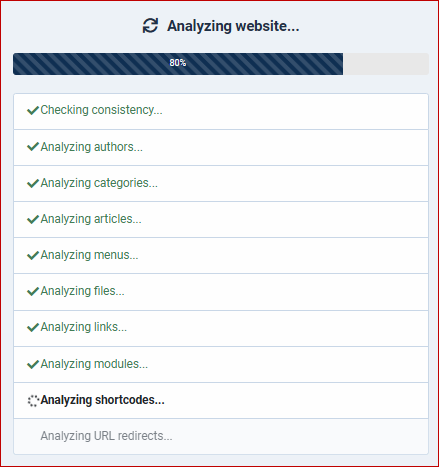
Analysis result
The following example shows the number of each data point from the EasyBlog tables. We will demonstrate this using a demo installation.
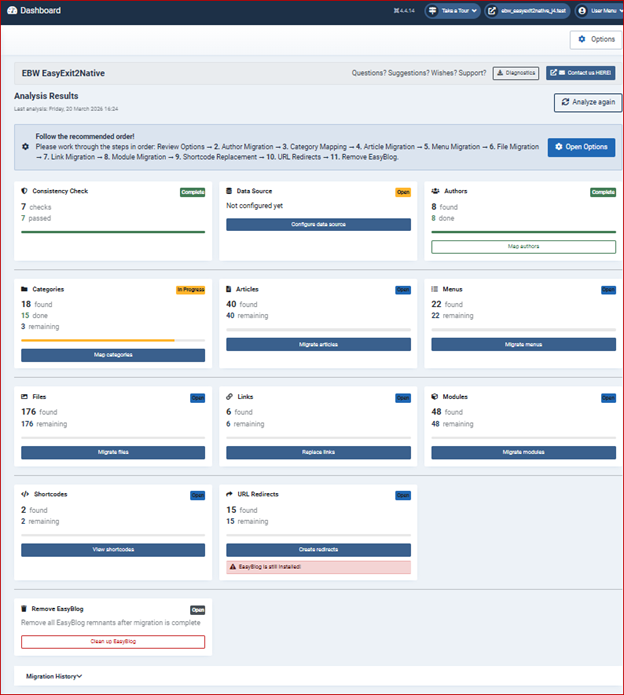
The list of areas
- Dashboard with Consistency Check: a corresponding check is performed every time the dashboard is accessed.
Data Source: Here you specify whether EasyBlog is installed locally or whether the data should be imported from another server.
- Author Migration: Migrate EasyBlog user profiles (avatar, biography, website) to the corresponding Joomla contacts.
- Category Migration: Displays a list of all EasyBlog categories with their respective subcategories. During automatic migration, parent categories are created first so that subcategories can be correctly assigned.
- Article Migration: Displays the list of all EasyBlog articles that can be transferred selectively or automatically.
- Menu Migration: Contains a list of EasyBlog menu items that can be automatically created in the Joomla menu area after the category and article migration.
- Migrate Files: Transfers all media files from EasyBlog to the Joomla Image area and updates the mapping to the previously transferred articles.
- Link Migration: Displays a list of EasyBlog entries with links that can then be manually or automatically assigned to the transferred articles.
- Module Migration: A selection list of modules used in EasyBlog. EasyBlog modules for which there is a Joomla equivalent can be migrated automatically.
- Shortcode Replacement Shortcodes like { module module name} or { loadmoduleid 123} directly integrate modules into articles. During module migration, existing shortcodes are taken into account and can be reassigned.
- URL Redirect: For search engine optimization (SEO), it is crucial that old URLs are correctly redirected, otherwise you will lose your ranking in search results. The URL redirects function handles this task and creates the corresponding entries under Redirects in Joomla.
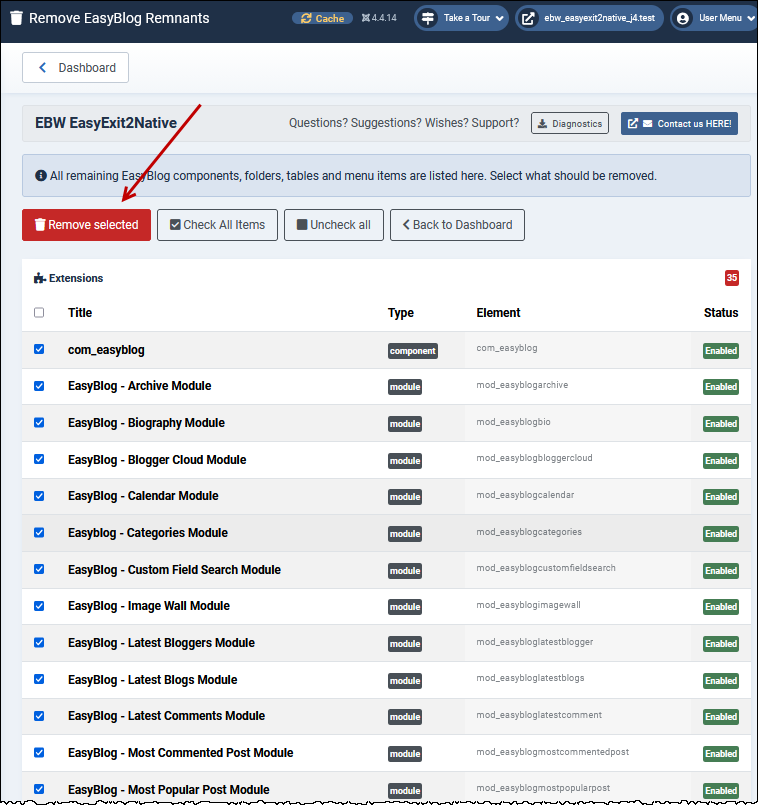
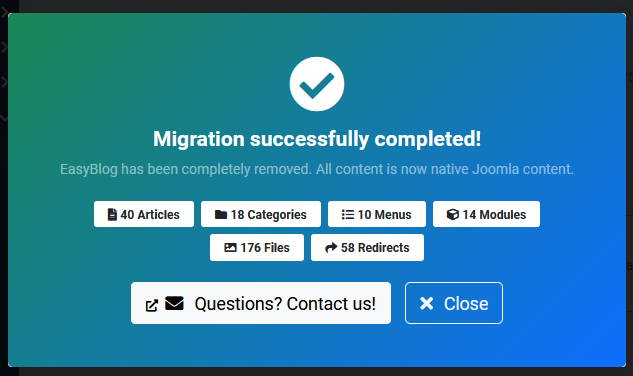
- Remove EasyBlog: After the migration is complete, this function can be used to remove all remaining EasyBlog files.
EBW_EasyExit2Native Options
Security notice: This data is only stored in your session (not in the database). It is automatically deleted after you log out. The values for a remote database are only relevant if the data is to be imported from another Joomla installation.
Data Source - Remote Database
Migration parameters
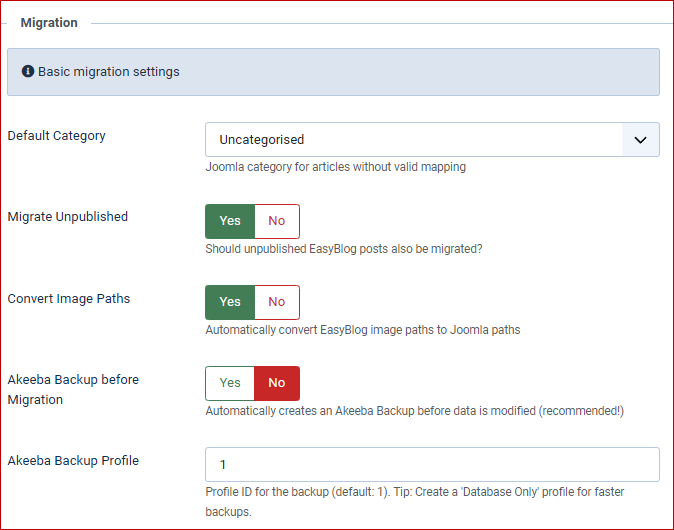
Access level mapping
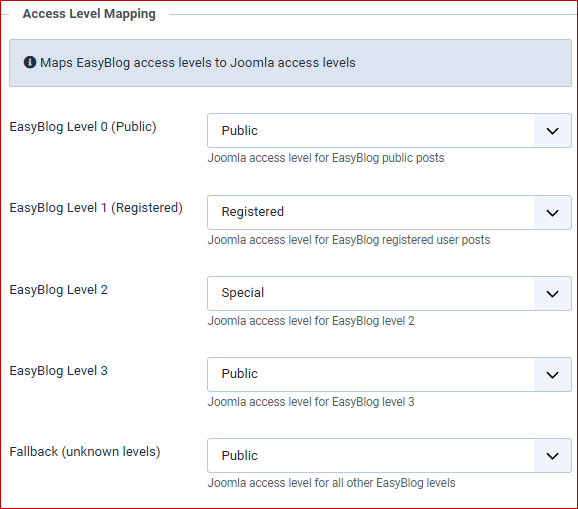
Migration Menu
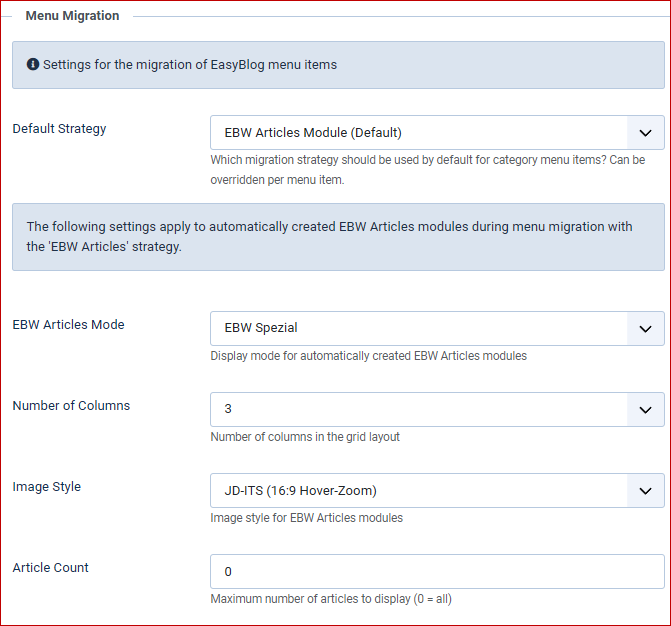
Our EBW Articles module tool, which can be used to design the EasyBlog layout in the frontend, is also integrated into the EBW_EasyExit2Native component.
Settings for migrating EasyBlog image files
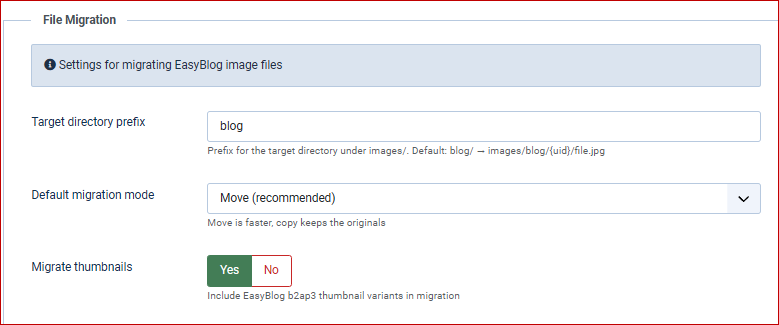
Migration module:
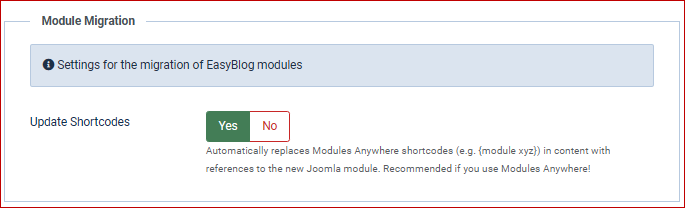
Automatically replaces Modules Anywhere shortcodes (e.g., { module xyz }) in the content by referencing the new Joomla module. Recommended if you are using Modules Anywhere!
Visual representation of the individual areas
Preparing and transferring the data
It is important that you complete the steps in order:
- Dashboard: Tool homepage
- Options: Check (default category, access levels, image paths)
- Data Source: Checks if an active EasyBlog version exists
- Author Migration
- Category Mapping
- Article Migration
- Menu Migration
- File Migration
- Link Migration
- Module Migration
- Shortcode Replacement
- URL Redirects
- EasyBlog Removal
- Migration history.
Authors - Assign to creators:
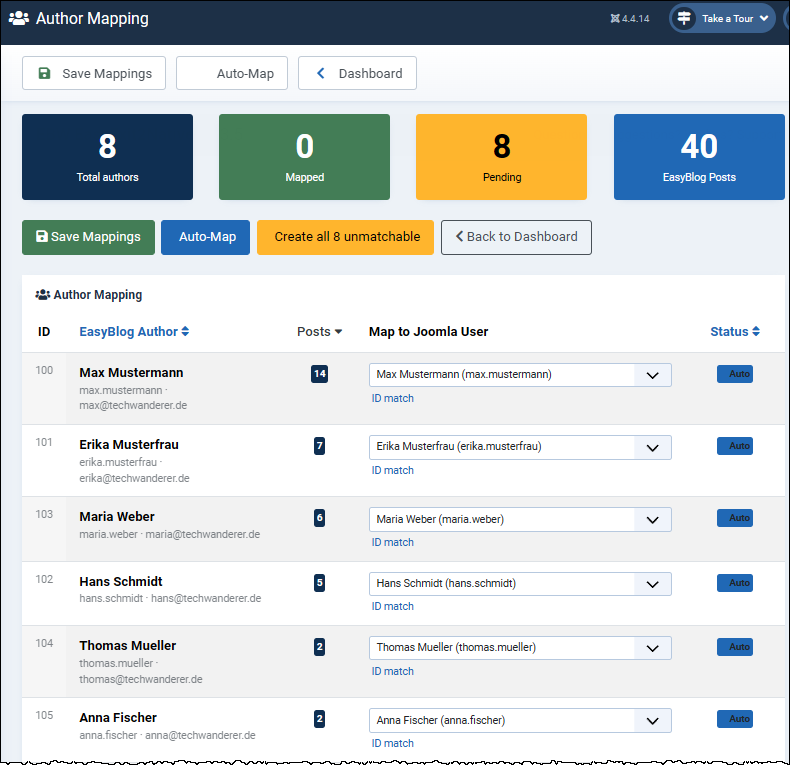
Proceed as follows
- Check the automatic assignments (highlighted in blue)
- Manually assign unassigned creators
- Save the mappings.
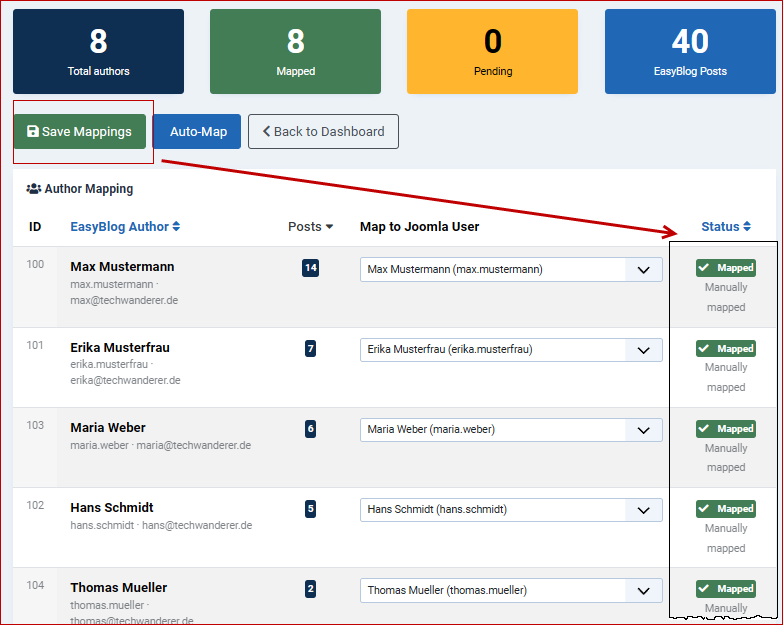
Executed Save Mappings:
Describe using the Auto-Map function
Refer to the process on the right for all.
Migration: categories
In this example we see an EasyBlog installation with 18 categories.
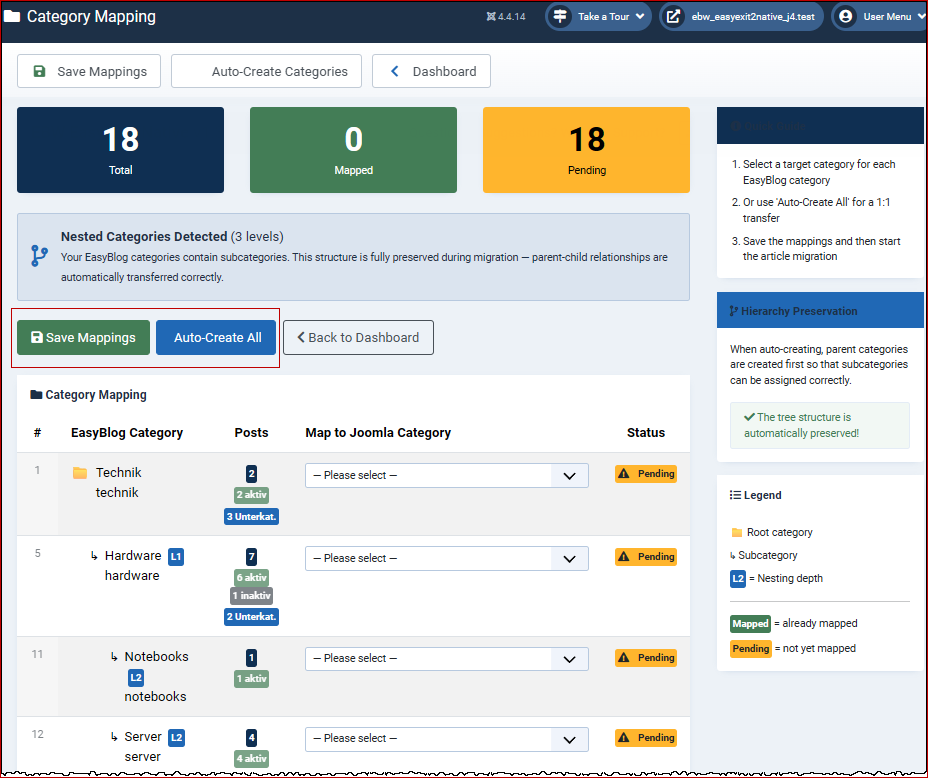
- For each EasyBlog category, select the target category.
- Or use 'Create all automatically' for a 1:1 copy.
- Save the mappings and then start the article migration.
- During automatic creation, parent categories are created first so that subcategories can be correctly assigned. The tree structure is automatically maintained.
- If you make the assignment manually, it can be saved as a mapping.
Automatic category migration
detected and fixed during the migration of EBW_EasyExit2Native.
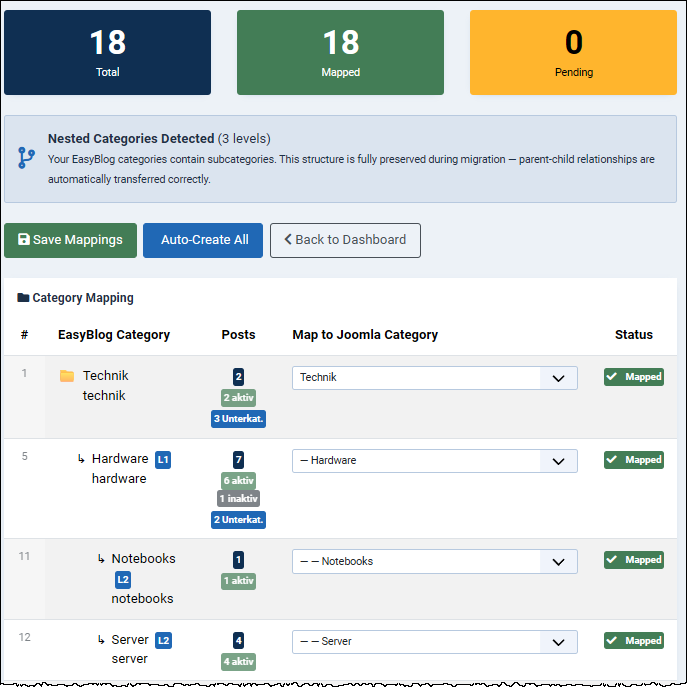
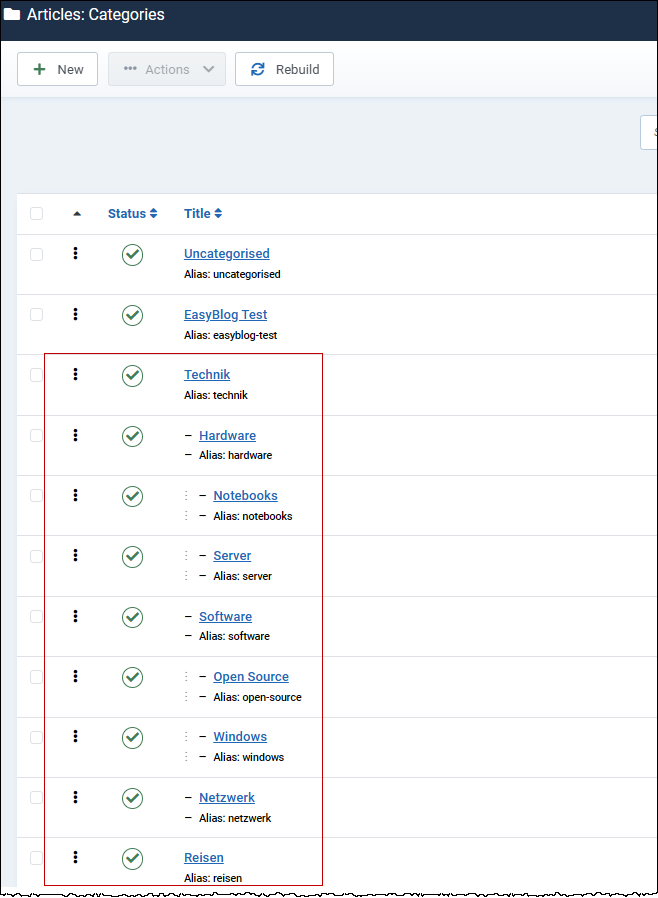
We then find the categories created by EBW_EasyExit2Native in the content area of our Joomla installation.
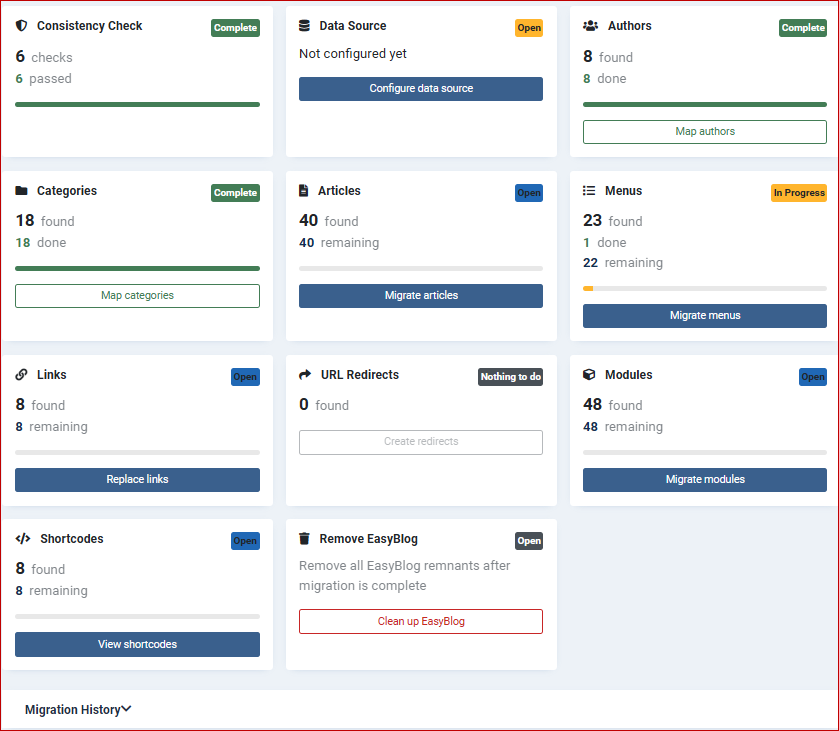
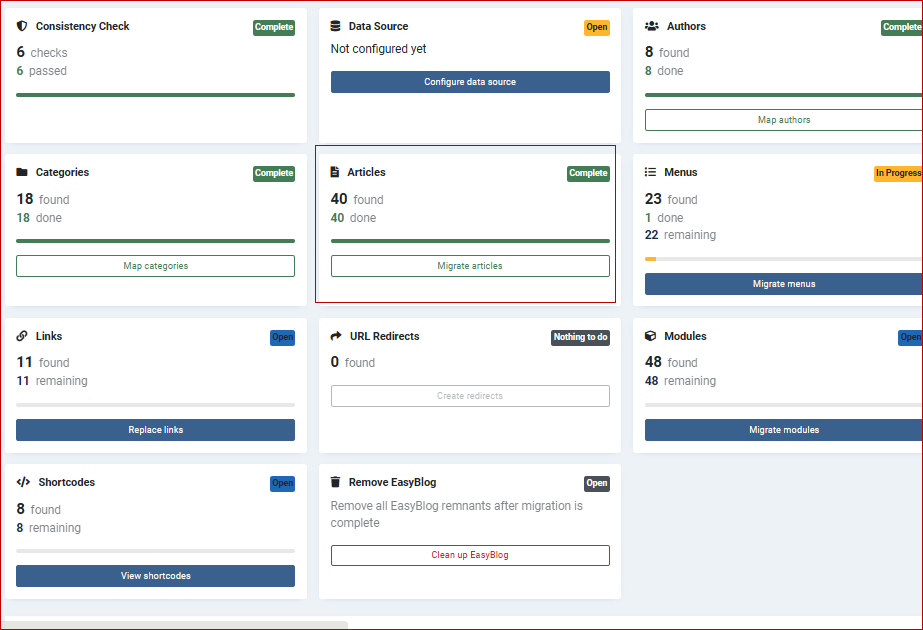
The dashboard after the previous migrations:
Migration: articles
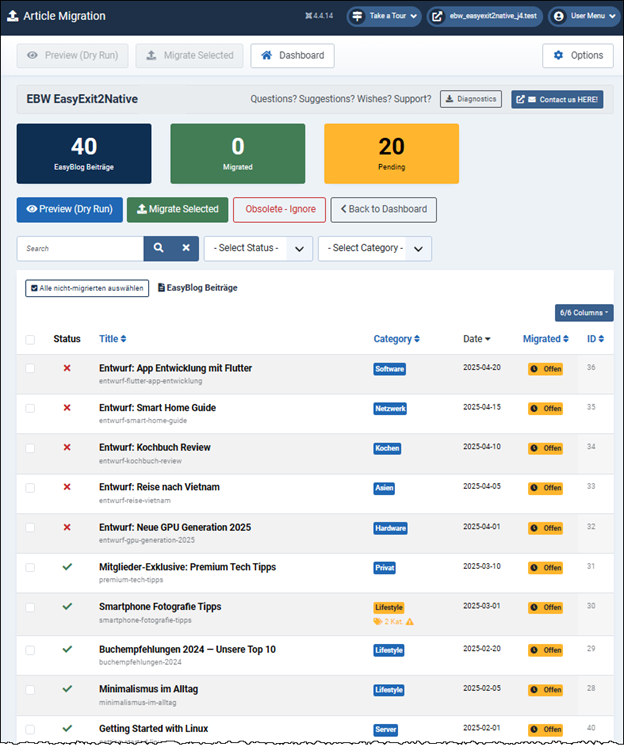
The preview (dry run) function allows you to perform a test run without migrating any items. This helps you identify errors. You must select a specific number of items to test or migrate. Each test or migration run is limited to a maximum of 100 items.
The result of our dry run:
Six articles have multiple categories in EasyBlog. Joomla only allows one category per article. Please select the desired category below for each highlighted article.
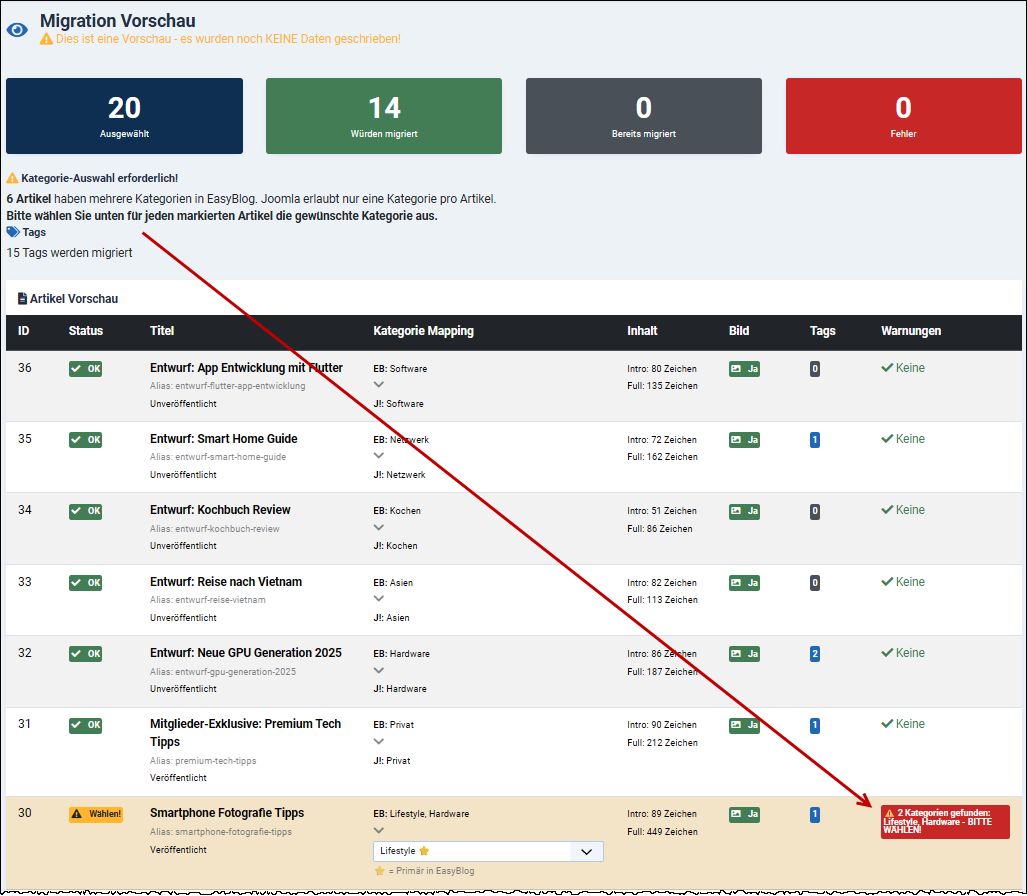
The reason for articles not being migrated could be that such articles were assigned to more than one category in EasyBlog. In Joomla, each article can only be assigned to one category.
Using the Preview (Dry Run) function, such articles can be manually assigned to a suitable Joomla category.
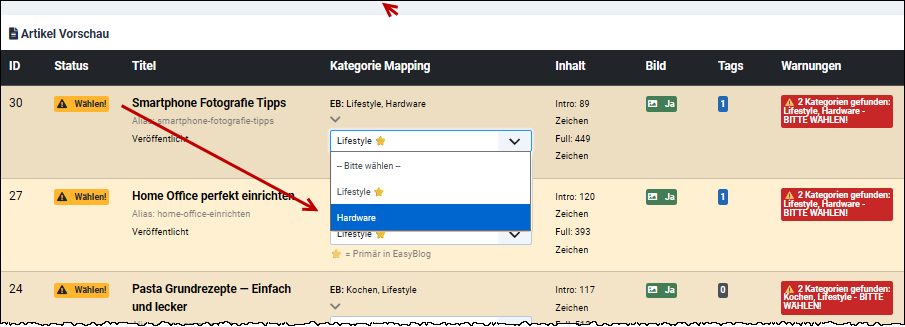
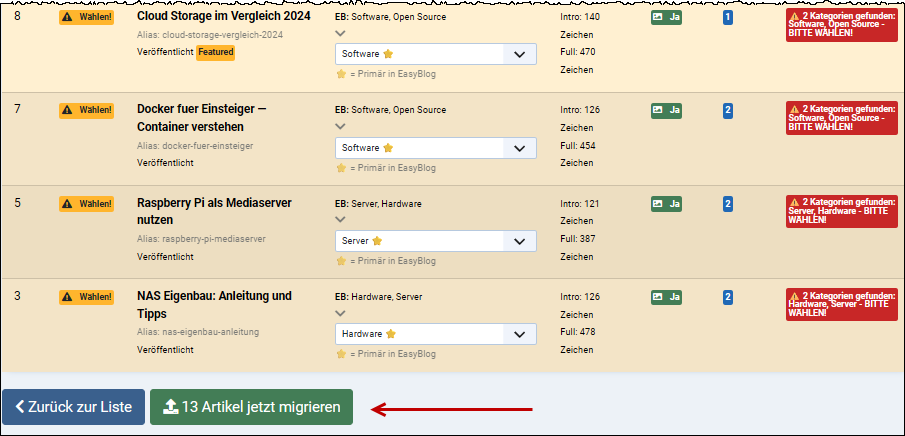
Once all items are assigned, the migration can be started at the end of the list.
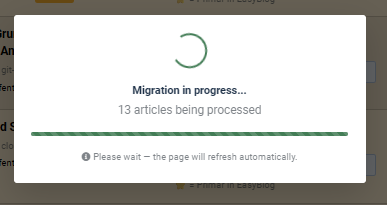
Result
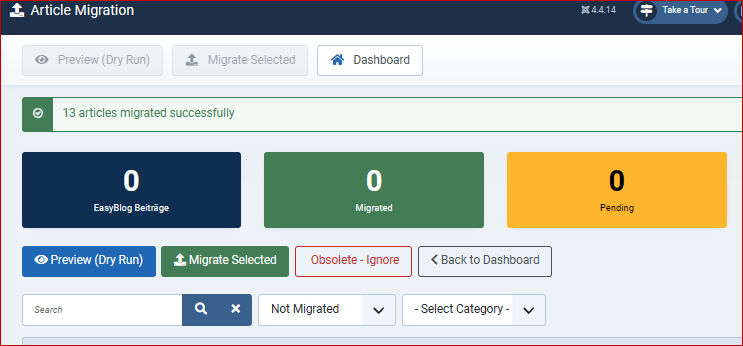
The migration of the 621 items in our example was successfully completed:
Migration, illustrated by the example of the menus:
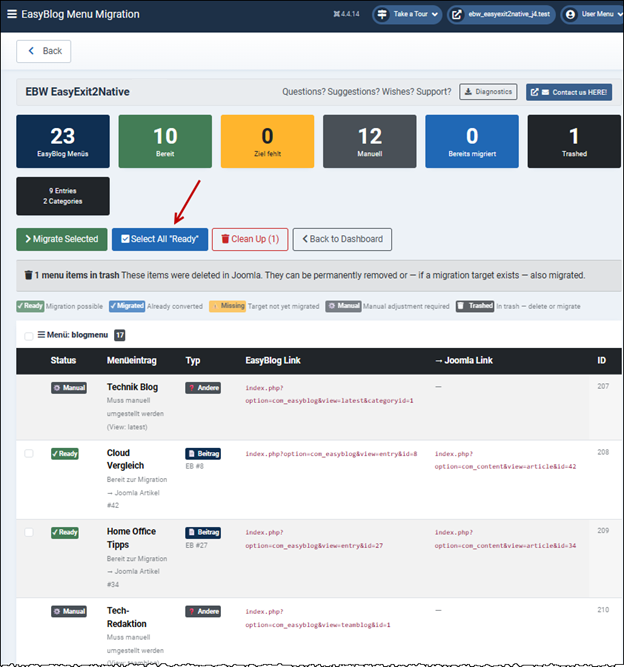
In our example, EBW_EasyExit2Native has an entry Found in the EasyBlog trash. Can be deleted.
Menu migration start
All menu items marked "Manual" must be checked.
These menu items use EasyBlog-specific views (calendar, team blog, archive, etc.) for which there is no direct Joomla equivalent. You can delete them, mark them as approved, or contact us – we'll be happy to help you with the transition!
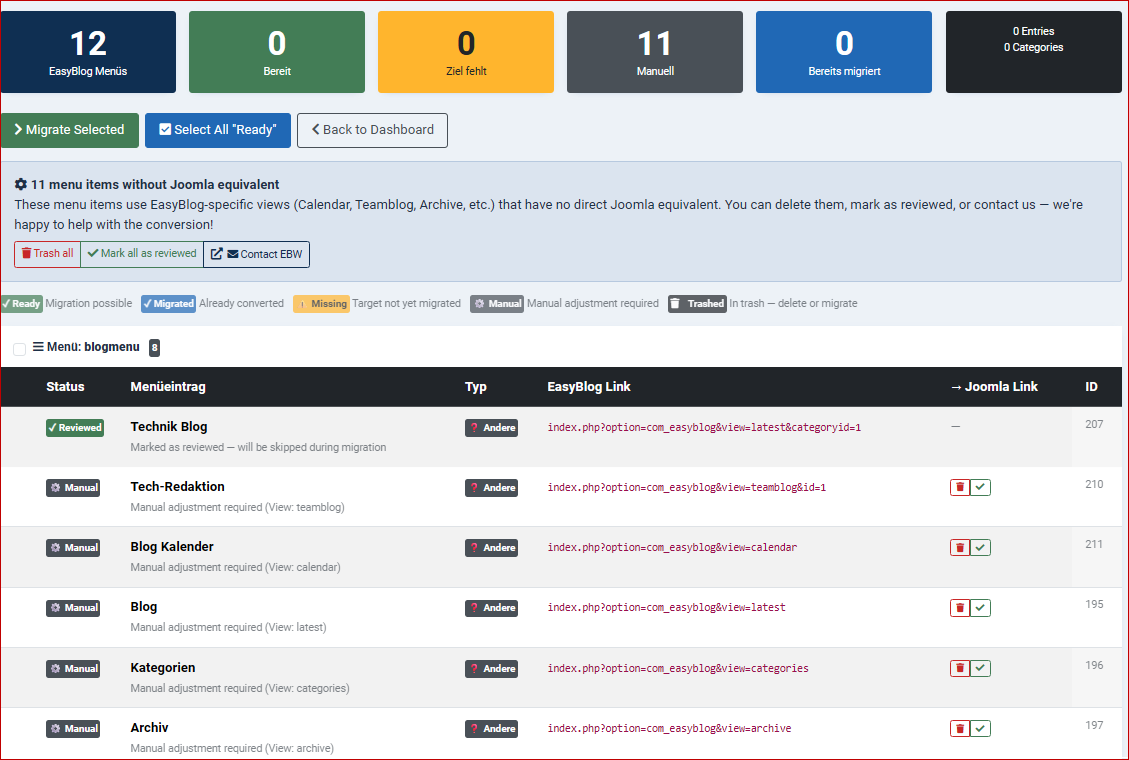
Deletion can be done individually by clicking on the trash can icon at the end of each entry, or all entries can be deleted via the " Trash all" tab.
Alternatively, you can mask the entries as verified.
Migration: files
This process migrates the files – media files – from the EasyBlog folders to Joomla and assigns them to the content files.
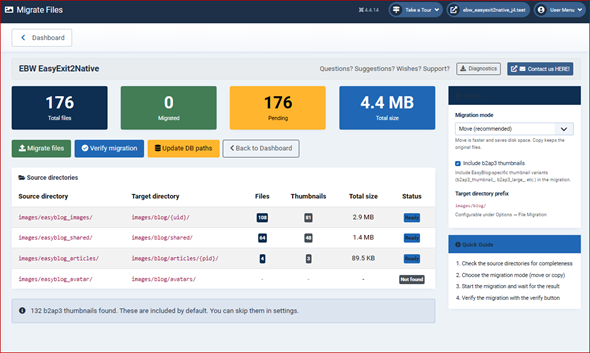
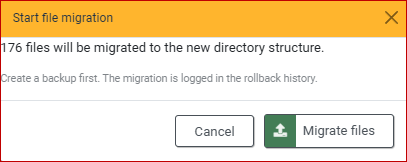
File migration start
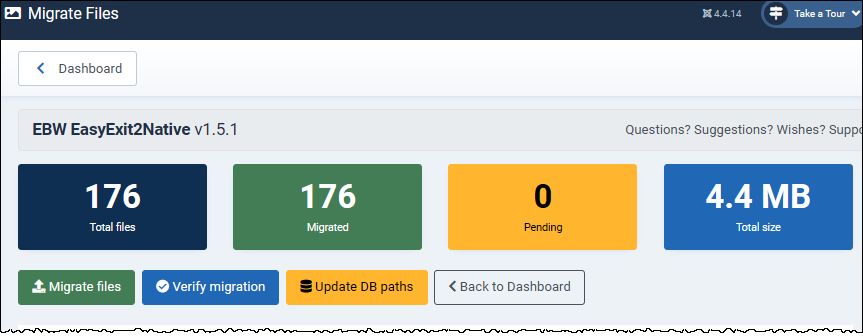
Then, the database paths for mapping the content files are updated.
Migration: links
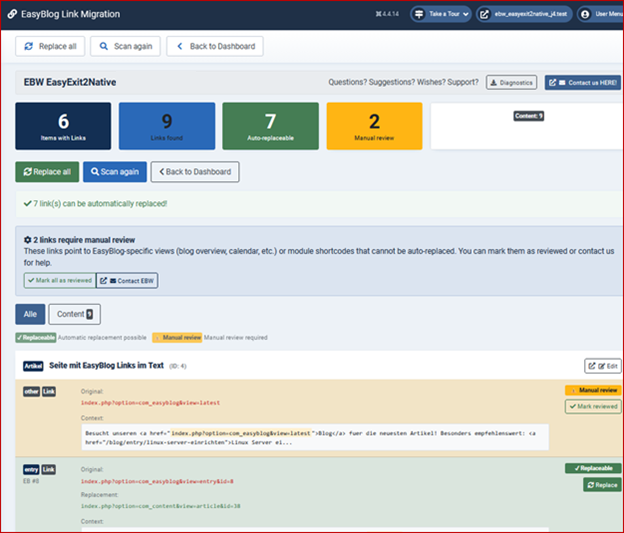
These links point to EasyBlog-specific views (blog overview, calendar, etc.) or module shortcodes that cannot be automatically replaced. You can mark them as verified or contact us if you need assistance.
Migration: modules
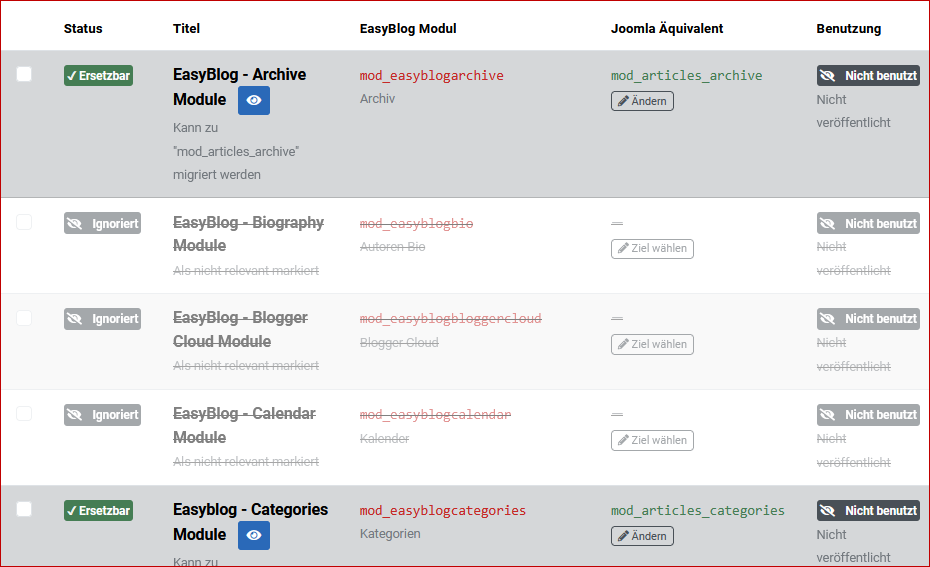
Recommended workflow: Step 1 — Ignore unnecessary modules (not used, not published). Step 2 — Preview how the module will look before and after. Step 3 — Check the target (make changes) and migrate.
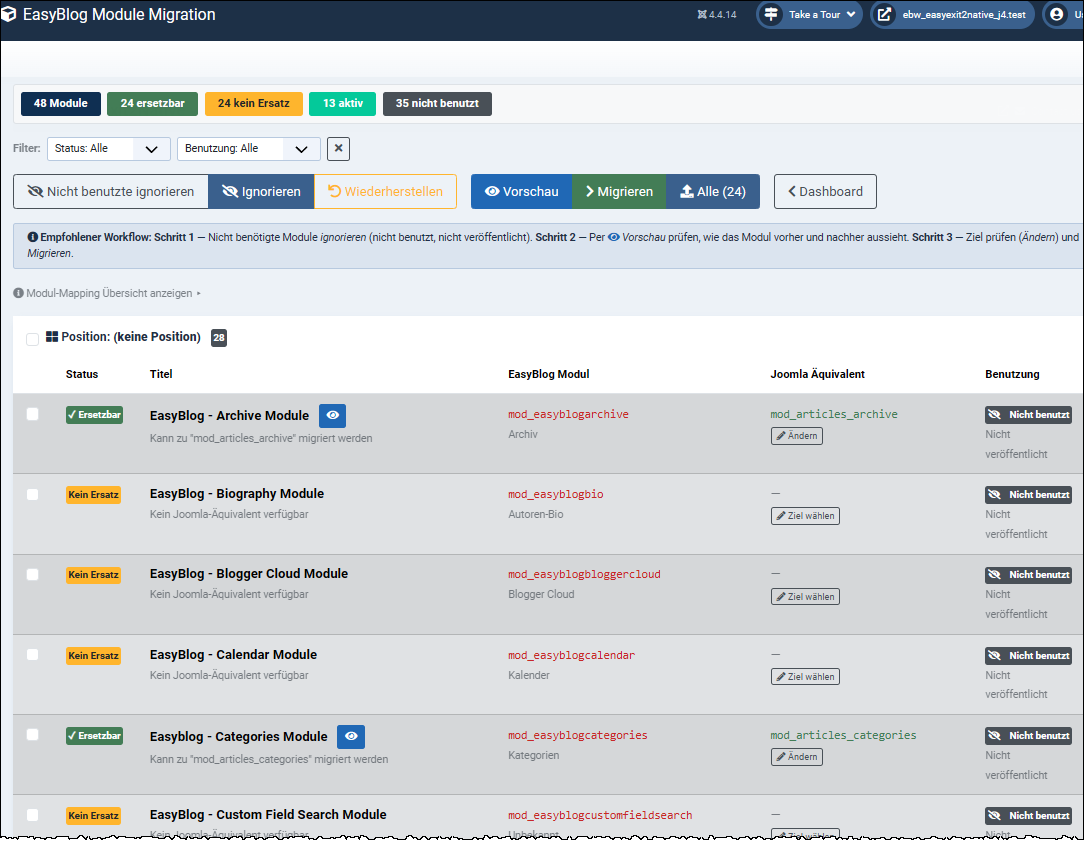
Status Parameters:
If an EasyBlog module can be replaced by a Joomla equivalent, this will be indicated by this status parameter. However, the replacement will only take place after the migration process is initiated.
There is no equivalent to this EasyBlog module in Joomla. If you require this EasyBlog module functionality, please contact us. We will then check if we can create a replacement.
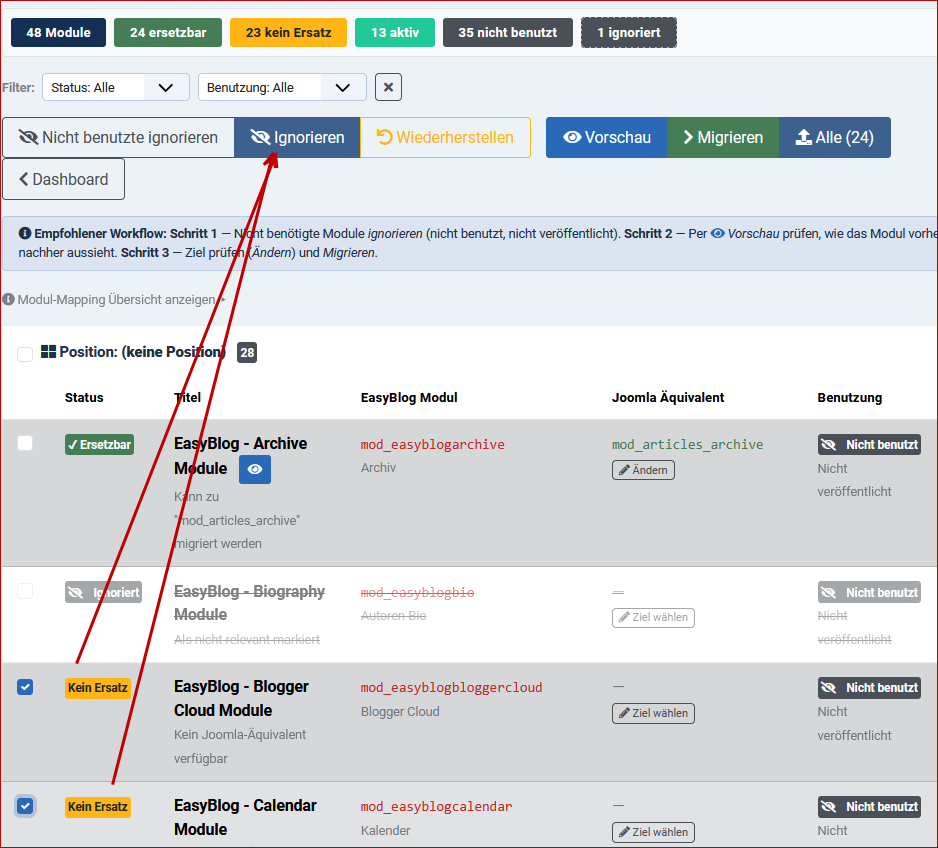
Set to ignored, as there is no replacement and one is not needed.
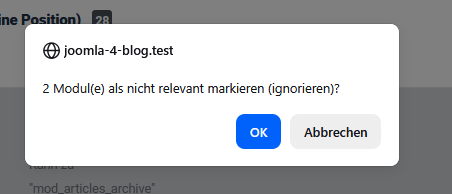
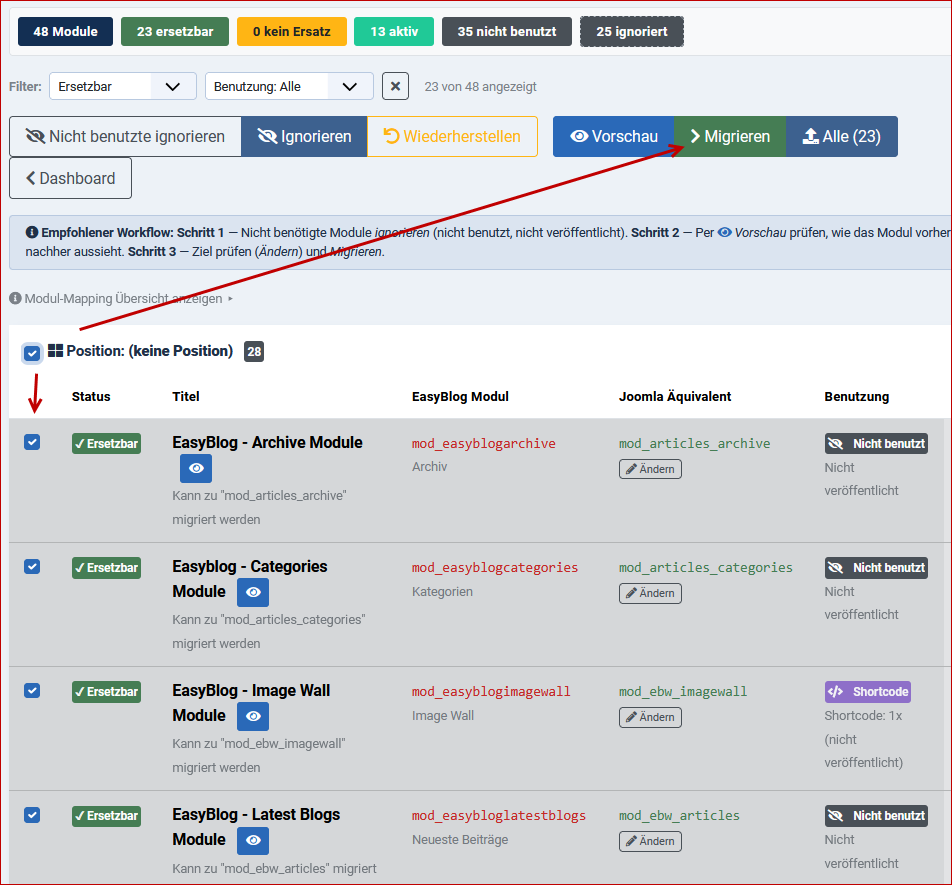
Setting the "ignore" option can be done individually or through multiple selections.
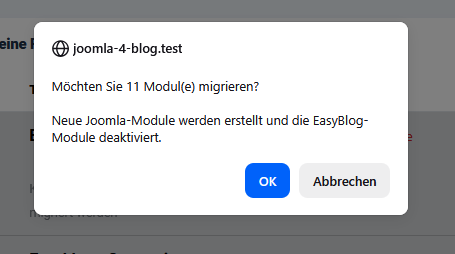
Now all modules with the status "Replaceable" can be migrated to the corresponding Joomla equivalent.
The result of the module migration:
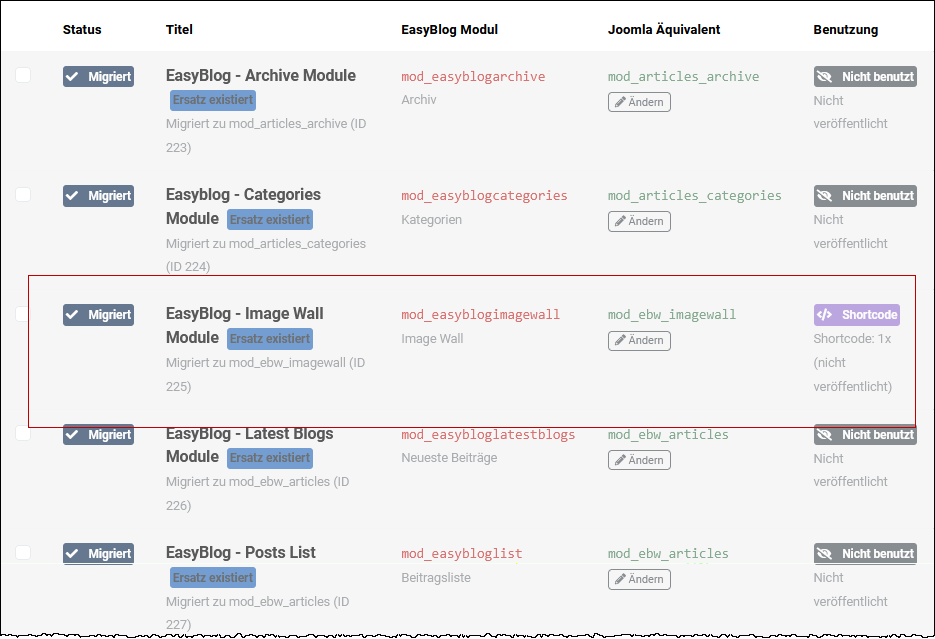
The migration of the modules also took into account the shortcodes that needed to be assigned.
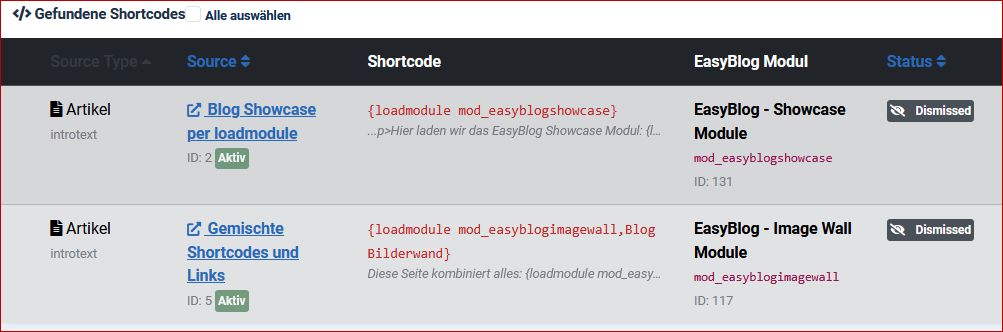
`loadmodule` command in Joomla is a well-known Joomla feature for embedding modules within articles or posts. Shortcodes like `{ module module name}` or `{ loadmoduleid 123}` embed modules directly into articles.
In our example, two shortcodes could not be set because there is no alternative to the EasyBlog modules in Joomla.
Migration: shortcode replacement
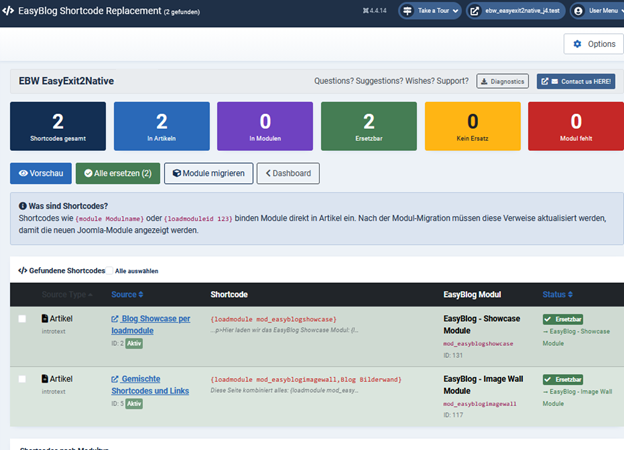
The ebw_easyexit2native package contains two modules that can replace the ones shown above.
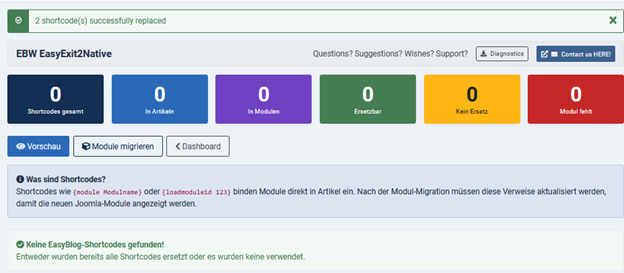
Migration, illustrated by the example of URL redirects:
URL rewriting must be enabled in the Joomla configuration.
After clicking Save, a test run is performed and a redirect preview is displayed in the right-hand area.
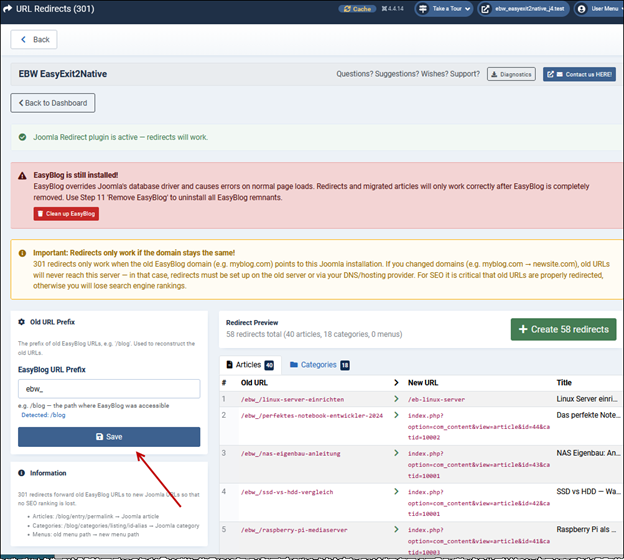
The actual creation of the redirect links is started via the following button.
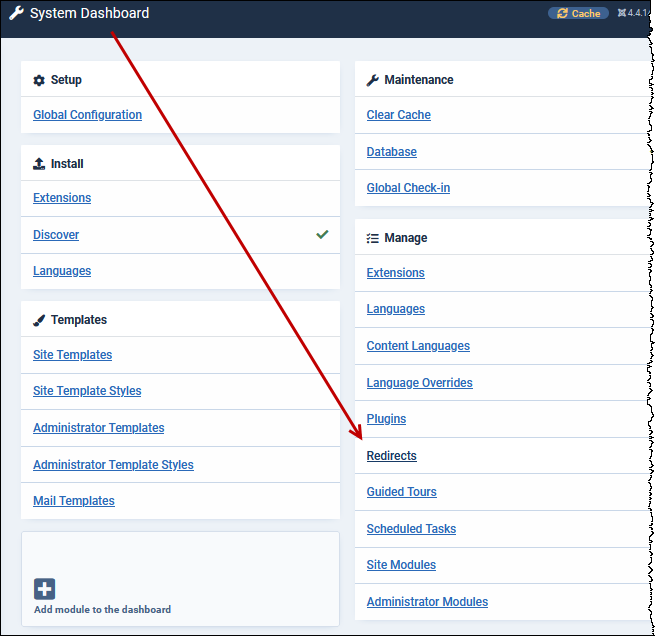
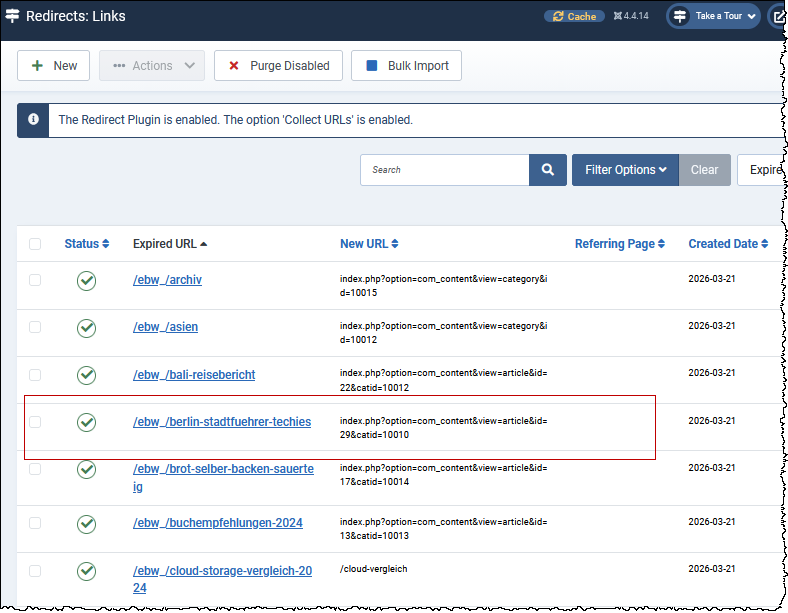
Control of redirect links
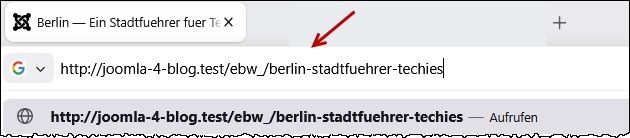
Redirect test
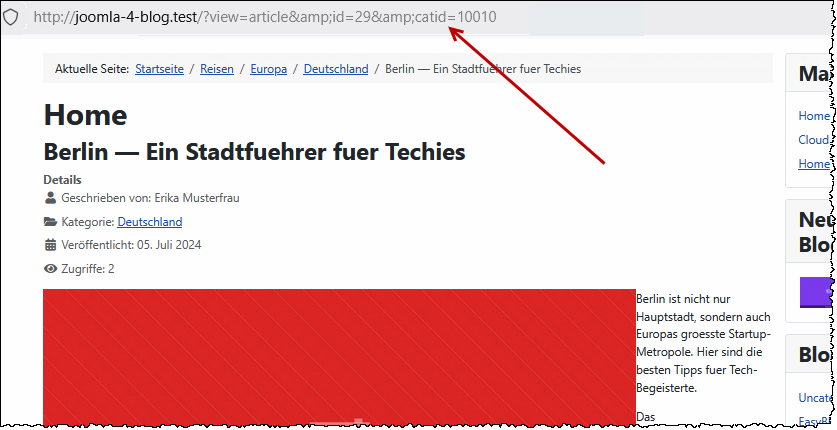
Remove EasyBlog remnants: