

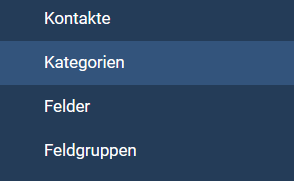
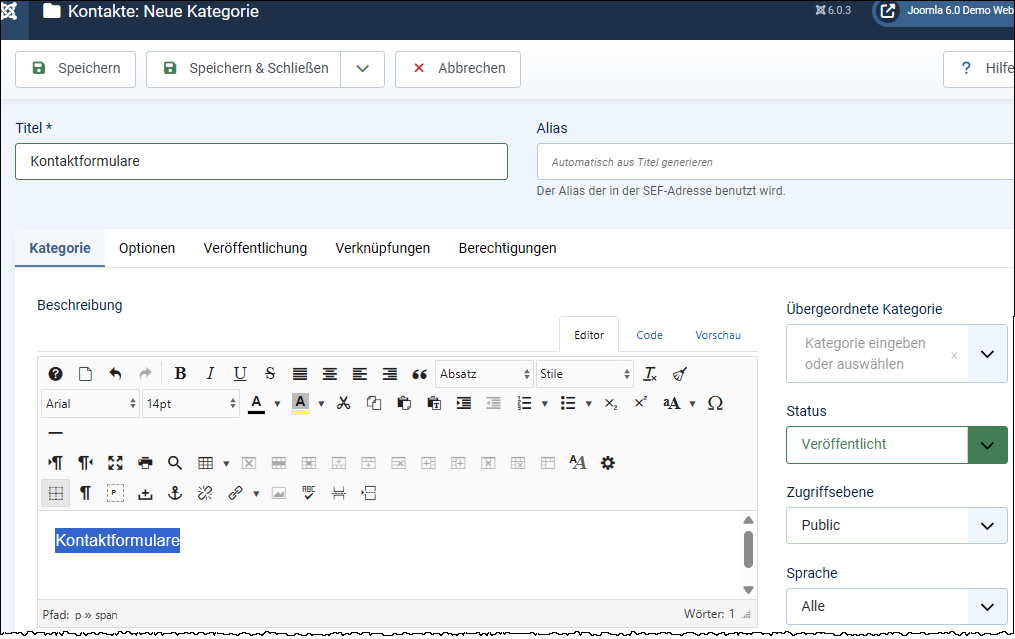
Under Components, we first create a corresponding additional category under the entry, for example named Contact Forms.
In our example, we call it contact with us.
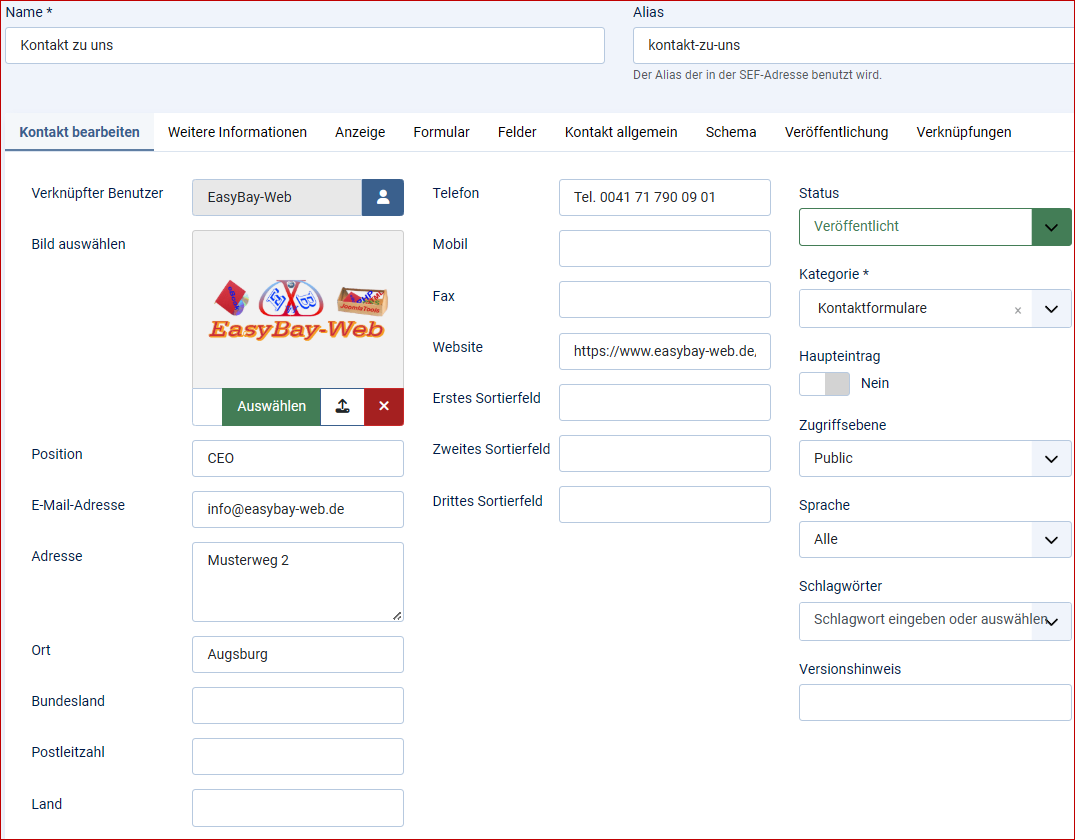
We categorize it as contact forms.
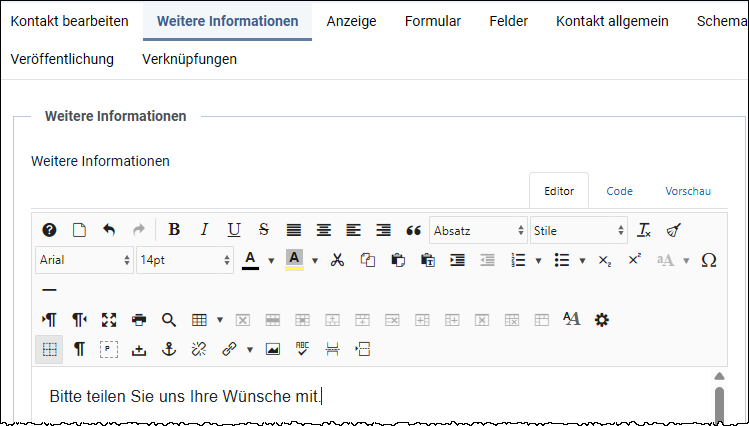
Under "Additional Information" we enter the text that should be displayed additionally.
The display area:
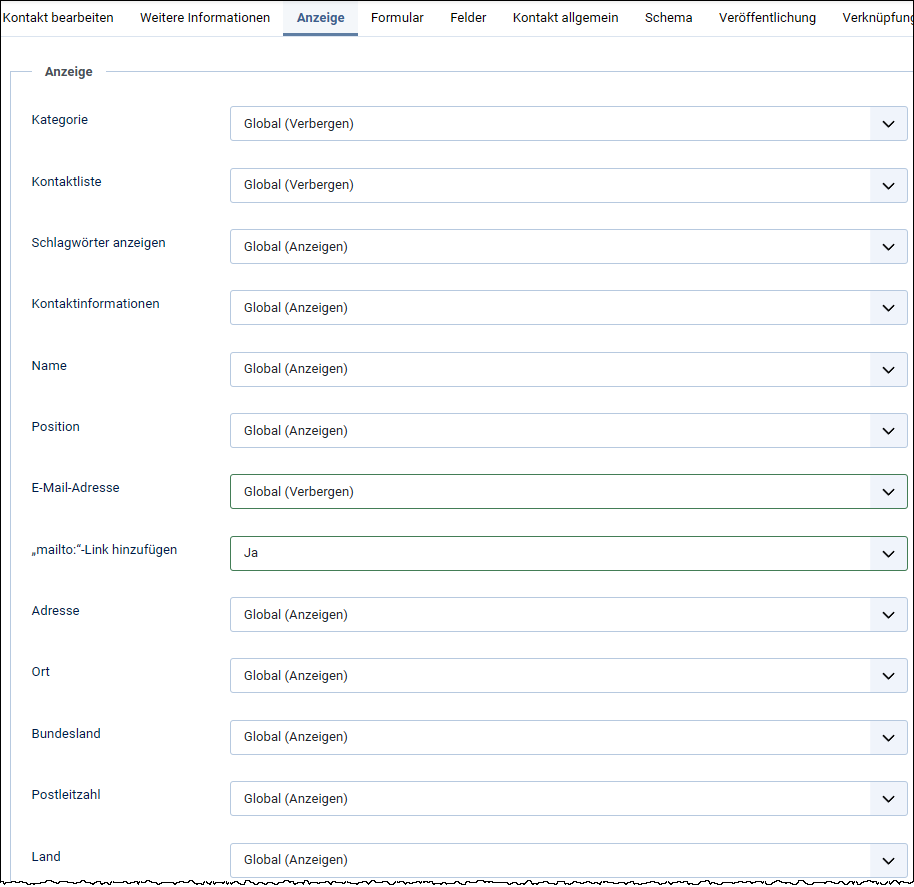
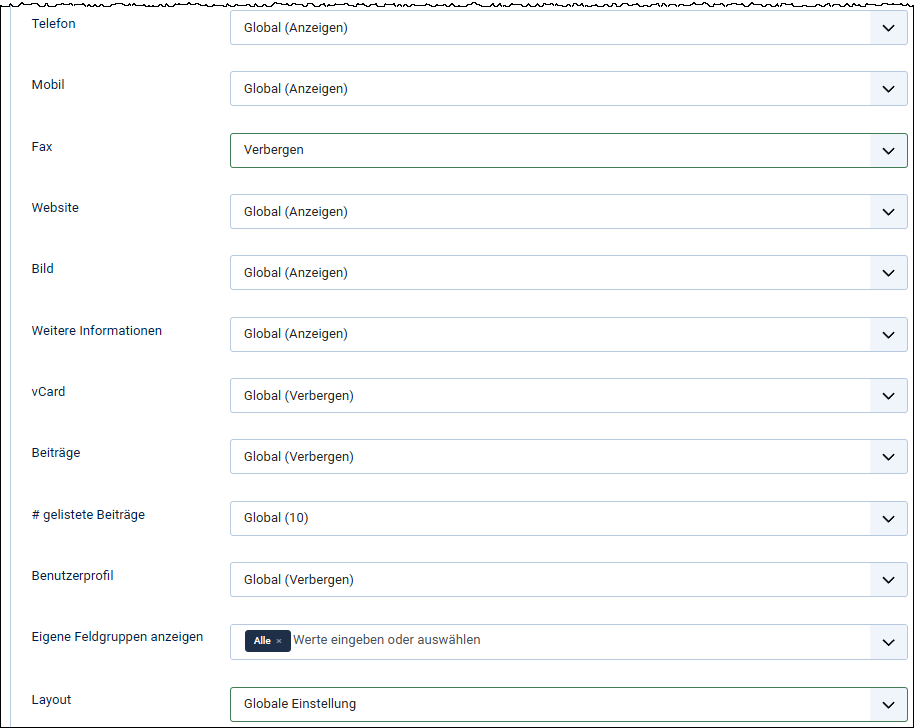
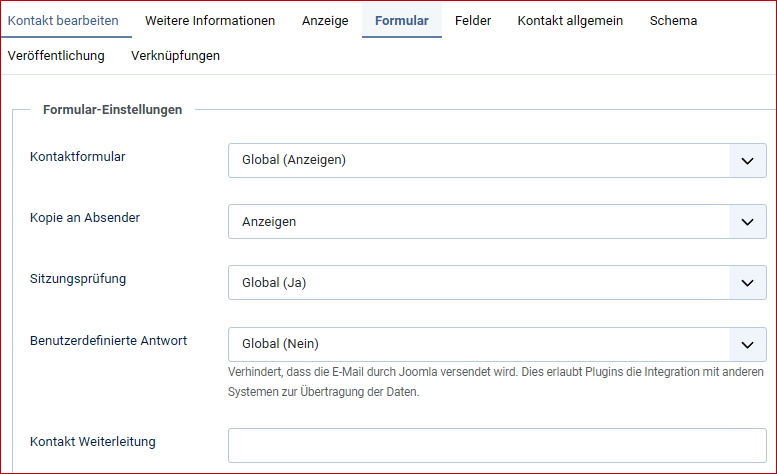
The form section:
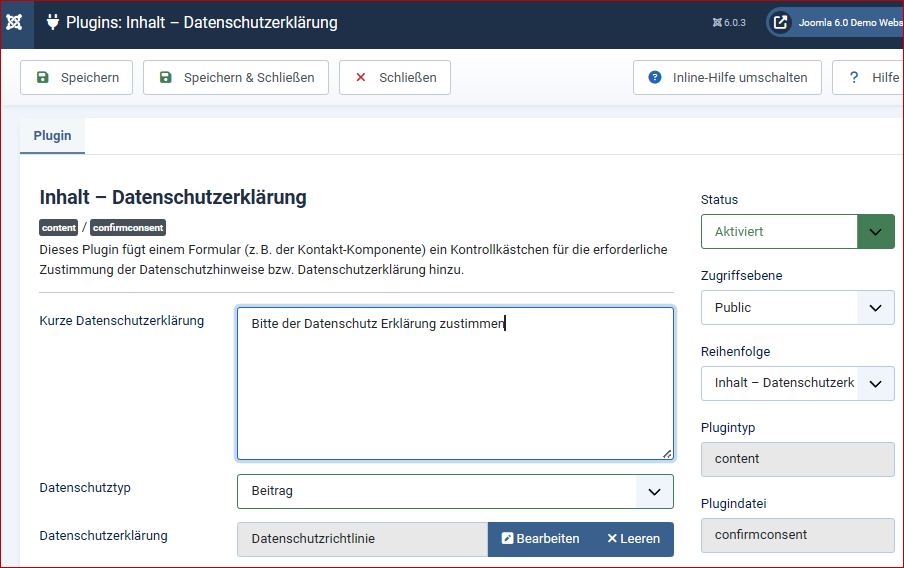
Every Joomla website with an active contact form collects data, therefore a privacy policy is absolutely necessary.
Joomla offers various plugins for this purpose. You can find more information in our Joomla e-book.
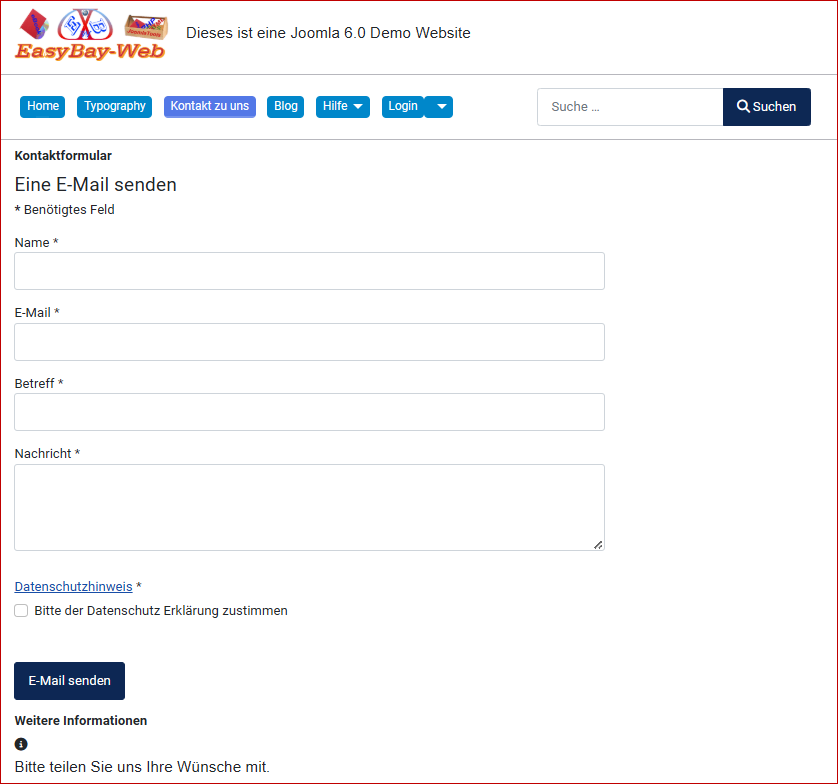
However, this is usually not enough, and you often want to integrate or query additional information. Joomla offers custom fields for this purpose. These are available for users, content, and contacts.
However, in the contacts section, for example, while selection and assignment are generally possible, they are not controllable, and positioning is not possible with the standard tools in Joomla.
Therefore, we took on the task and created the EBW-ContactFormPro extension.
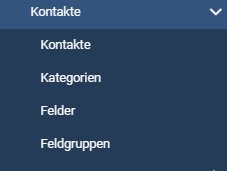
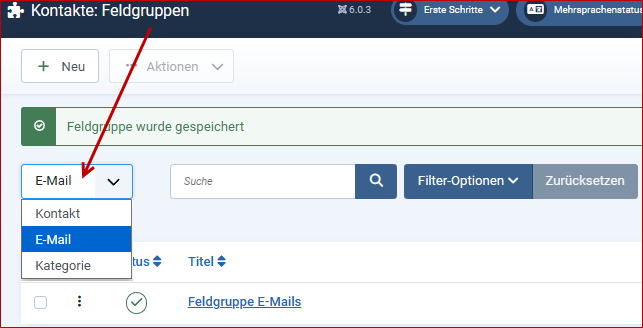
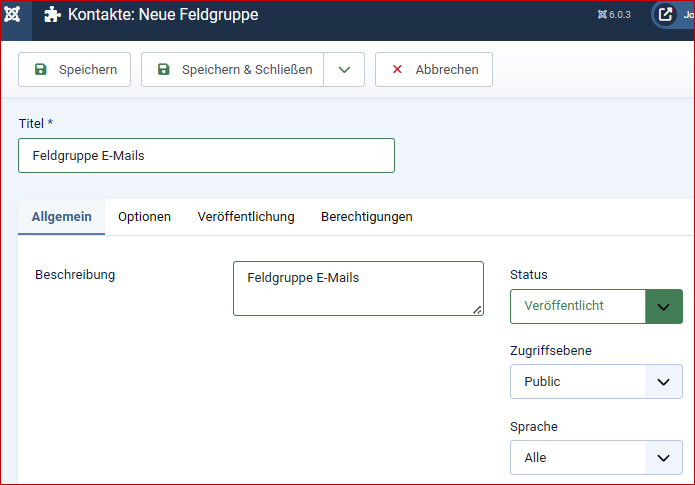
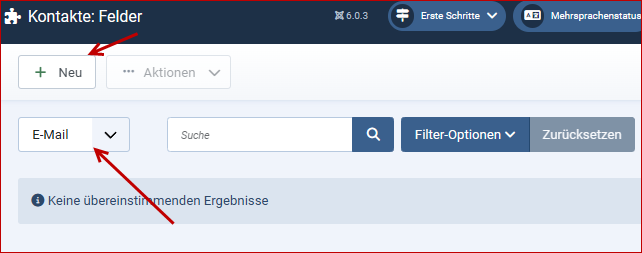
To do this, we first create a field group named "Field group Emails to":
It should be noted that all configurations in the area of custom fields for contact forms must be made under the assignment of emails.
Example order number
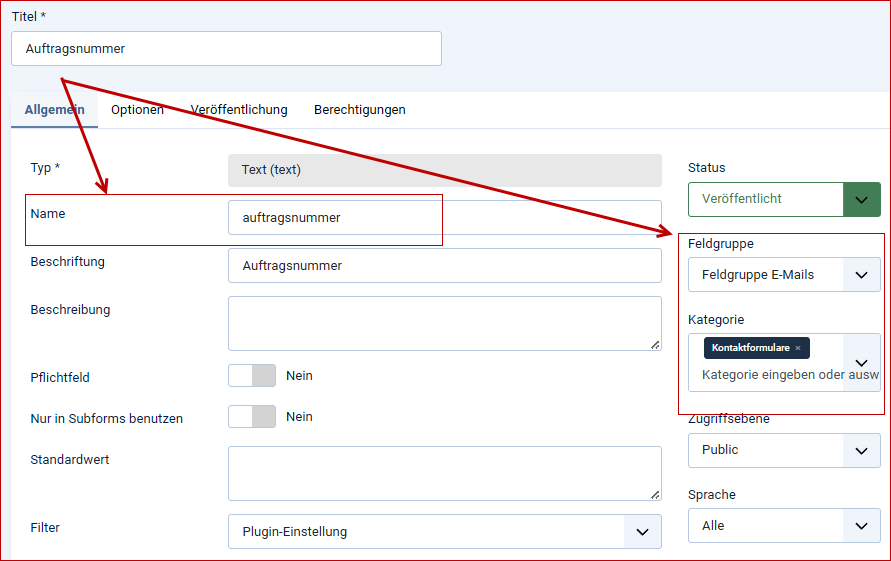
The following are important:
- The parameter under Name: here order number; this parameter is required for later field mapping in the EBW-ContactFormPro plugin.
- The assignments: field group and category.
Example: How did you find us?
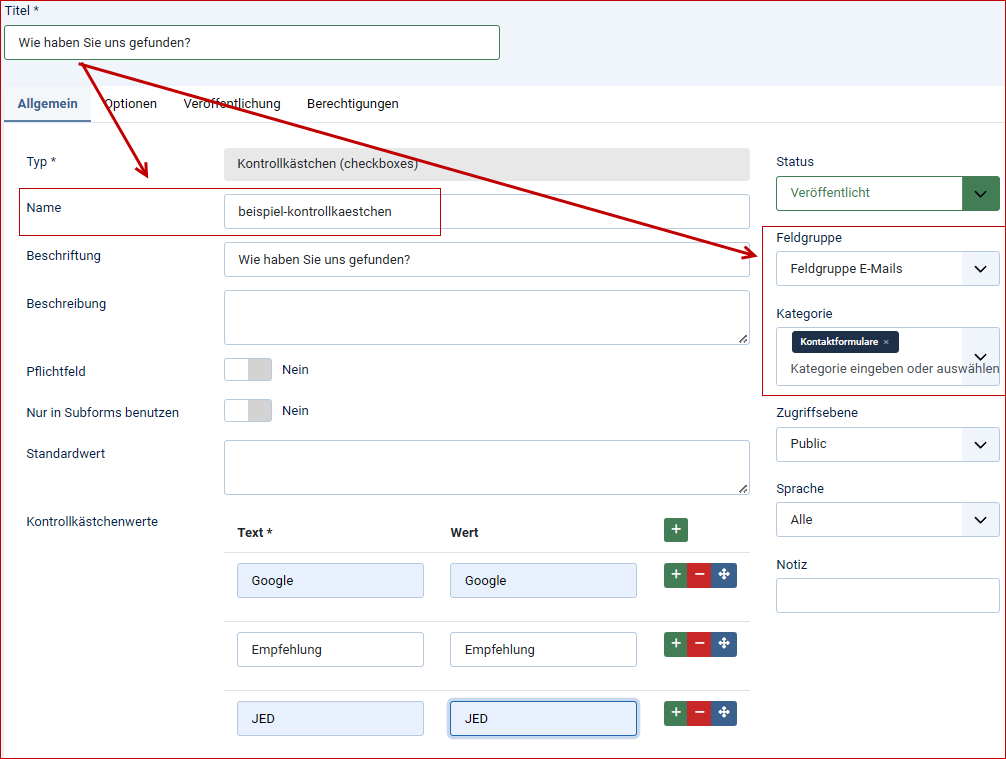
Note the parameter example- checkbox here.
EBW-ContactFormPro extends the Joomla contact component by allowing you to utilize each of the custom fields and position them anywhere within the contact form. Desired fields can be selectively assigned to each contact form.
EBW-ContactForm Pro extends the Joomla contact form by adding:
- Flexible field positioning
- Form rules per contact
- File upload
- HTML Mail Templates
- Auto replies
- Backend → System → Extensions → Install
- Select ZIP package
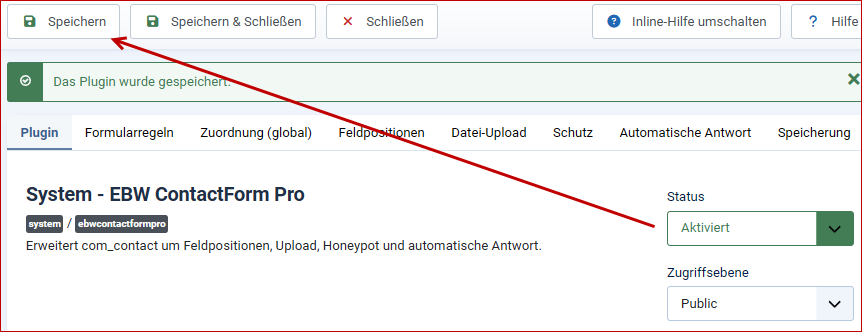
- Activate plugin: System - EBW ContactForm Pro
The EBW-ContactFormPro extension creates an override in the current template during installation.
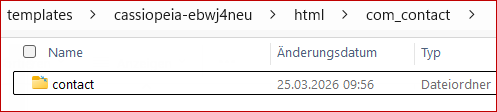
The PHP file embedded within it controls the subsequent displays of the contact forms.
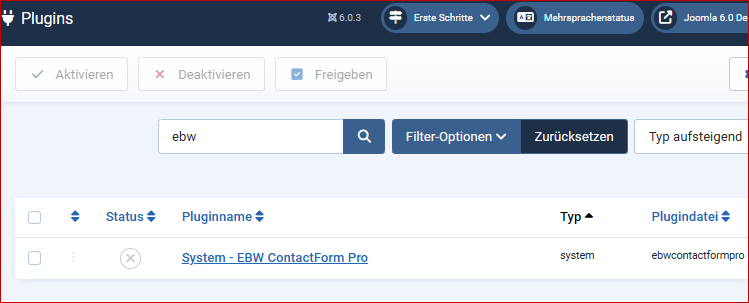
Here we find the plugin system - EBW ContactFormPro:
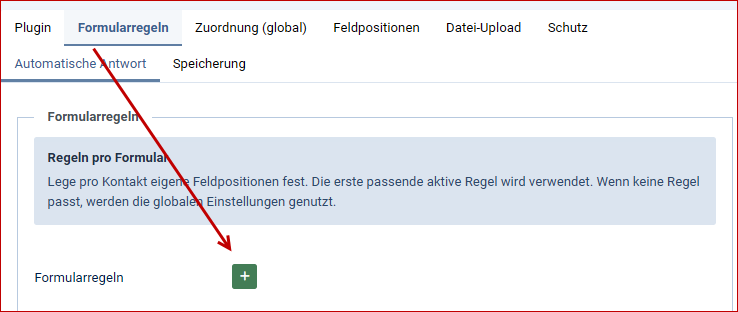
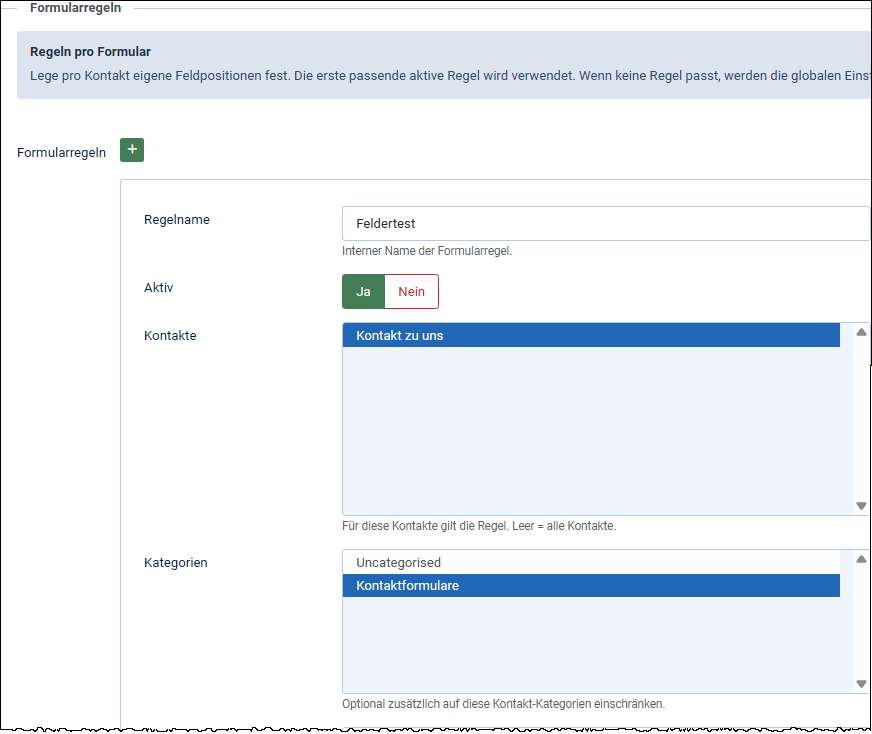
Here we create a new rule form and assign it to our contact and the fields.
- Form rules allow for different forms with different fields and views.
- Rule name, Active/Inactive, Select contacts
Define separate fields and field positions for each contact. For our example, use the settings shown in the screenshots.
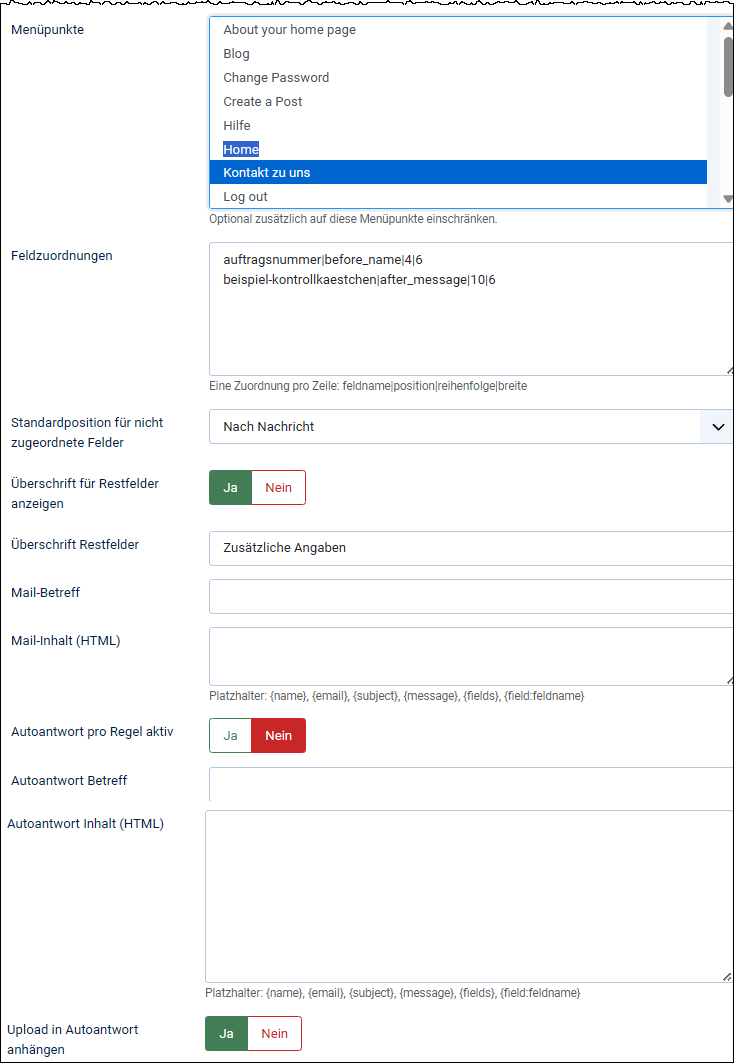
order number|before_name|4|6example-checkbox|after_message|10|6
In our example:
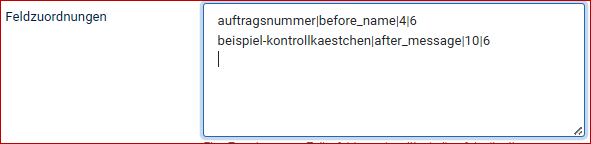
Extreme precision is required here.
Here you can enter a subject for this contact email.
Here, email content can be stored in plain text and/or HTML.
- HTML templates are possible per rule.
- Placeholders: { name }, { email }, { subject }, { message }, { fields }
Here you can enter a message for an automatic reply in plain text and/or HTML.
- Optional upload as an email attachment.
If no field mappings are set, no user fields will be visible in the selected contact form.
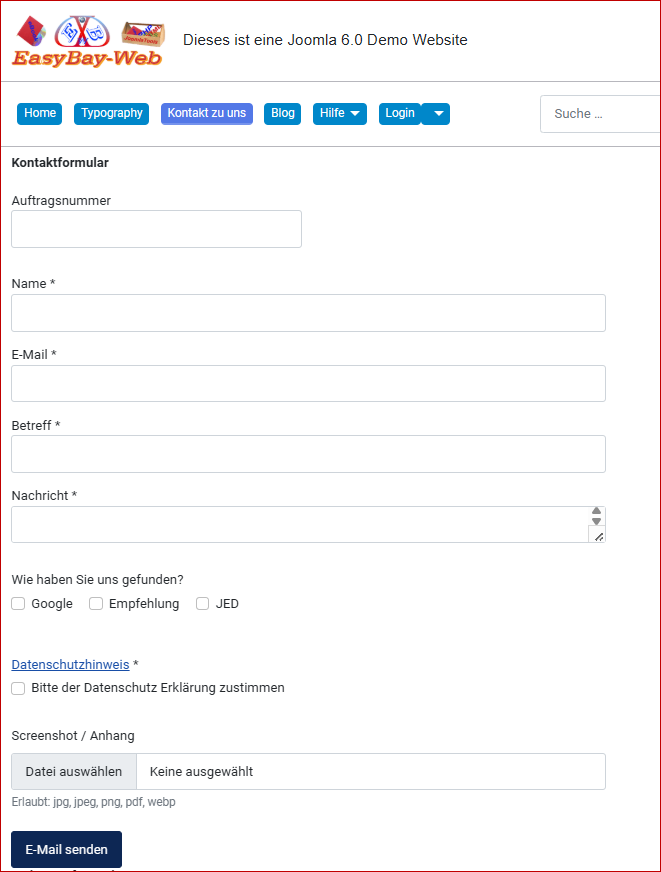
With our extension EBW ContactFormPro, any type of contact form is possible, as every field available in Joomla can be used and positioned individually.
Scope:
Empty = all contacts. If you select contacts, the plugin will only apply to those contacts. Categories and menu items can further restrict the selection. This global mapping serves as a fallback if no form rule is used.
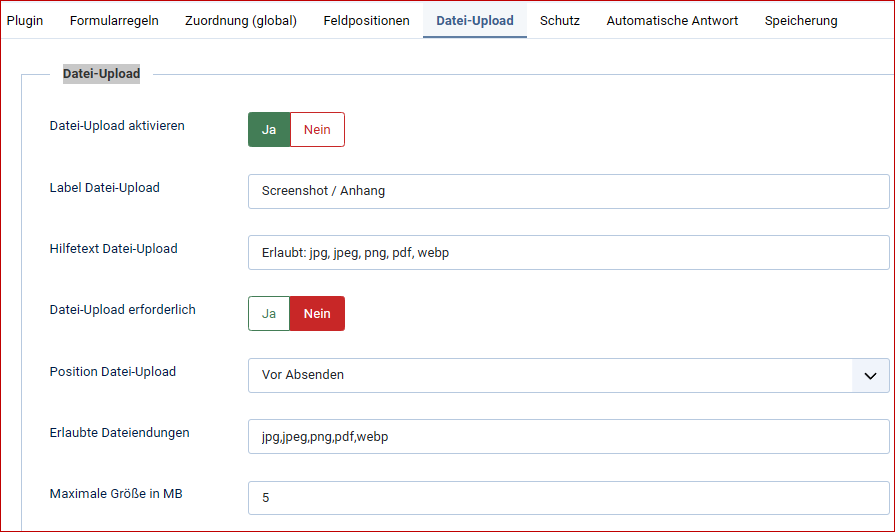
Here you specify whether a file upload is possible for the form and define the parameters for it.
Honeypot protection is an IT security measure designed to attract and deceive attackers or malware in order to analyze their behavior and protect the actual system.
Currently not in use!
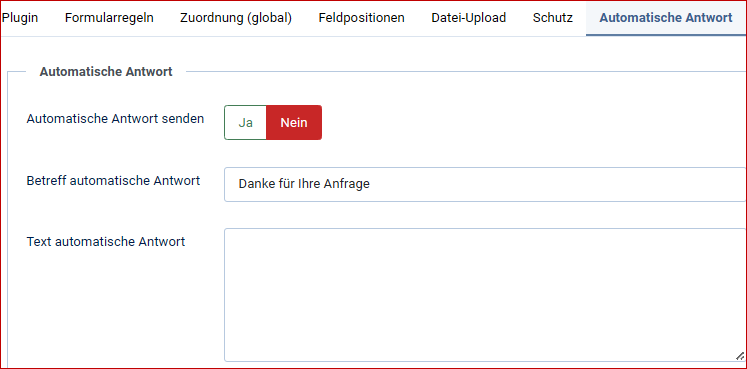
not already defined for the respective form in the form rules.
The email requests are stored in the database in the table #__ebw_contactformpro_submissions.
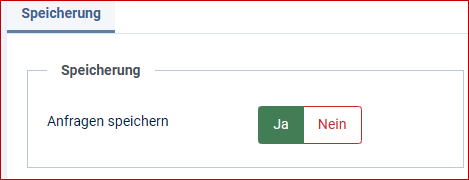
EBW ContactFormPro tool has a component for viewing and editing.

Examples:
order number|before_name|4|6
example-checkbox|after_message|10|6
- field name = internal field name
- position = Position in the form
- order = order within this position
- width = Bootstrap column width
- before_name
- after_name
- before_ email
- after_ email
- before_subject
- after_subject
- before_message
- after_message
- before_submit
- after_submit
- 12 = full width
- 6 = half width
- 4 = one third
- 3 = a quarter
- no semicolons
- no commas
- exactly one entry per line
- Field names must be the internal names, not the titles.