

Create contacts in Joomla:
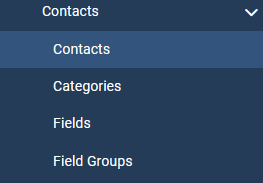
Under Components, we first create a corresponding additional category under the entry, for example named Contact Forms.
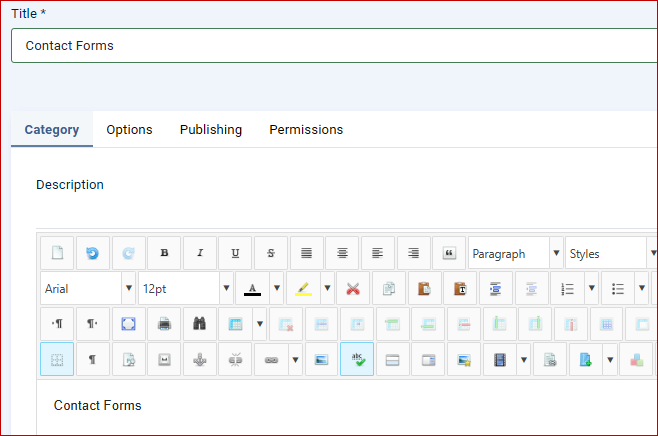
In the next step, we will create the basic contact form:
In our example, we call it contact with us.
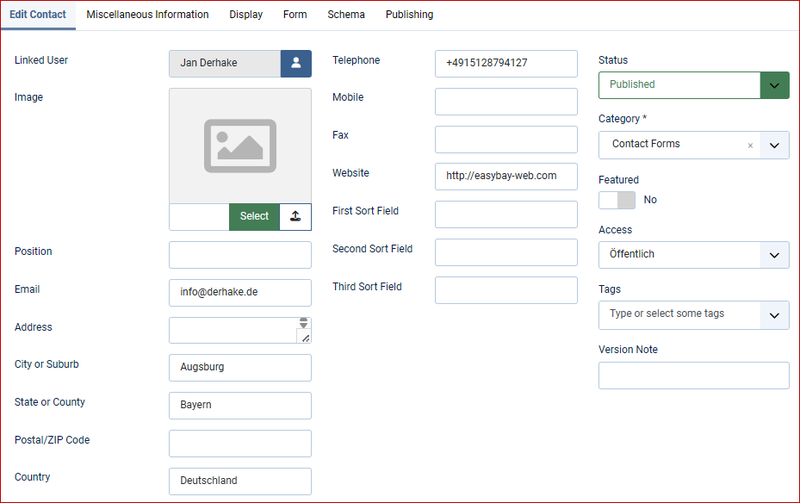
We categorize it as contact forms.
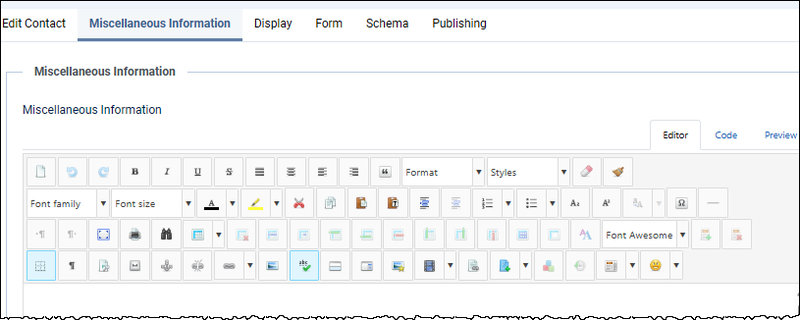
Under "Additional Information" In our example, it remains empty.
The display area:
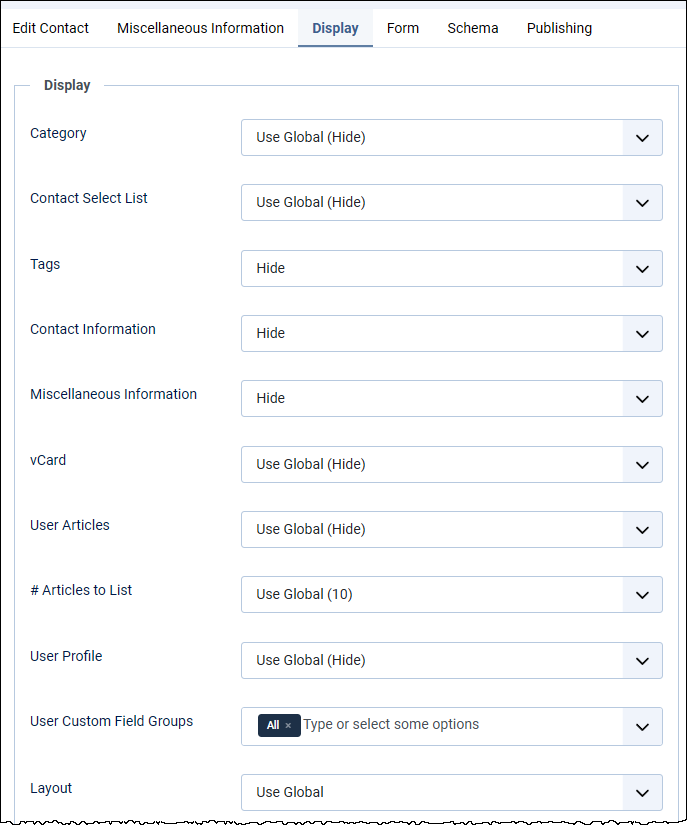
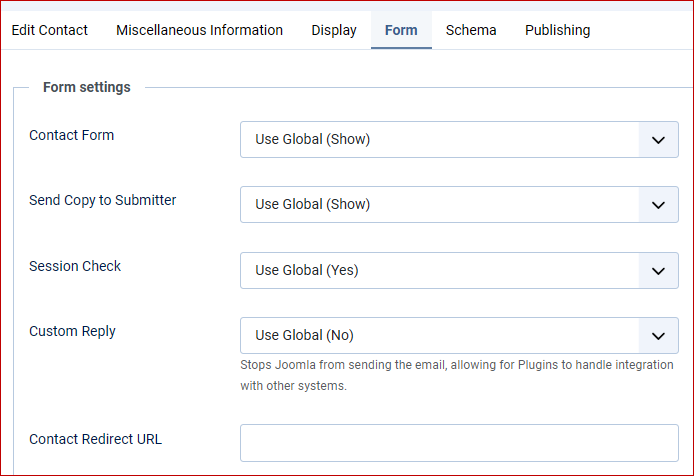
The form section:
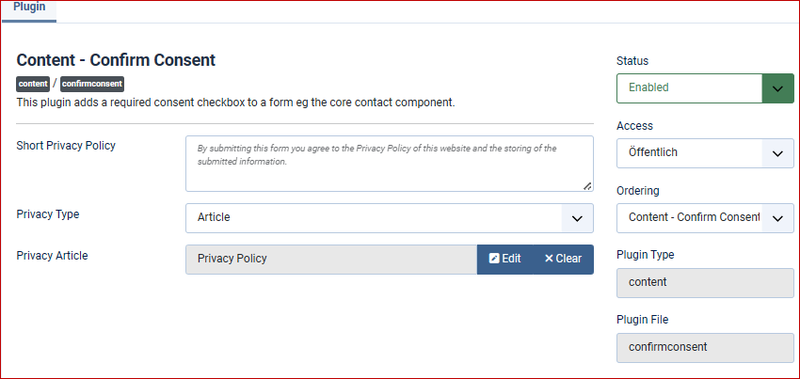
Data protection:
Every Joomla website with an active contact form collects data, therefore a privacy policy is absolutely necessary.
Joomla offers various plugins for this purpose. You can find more information in our Joomla e-book
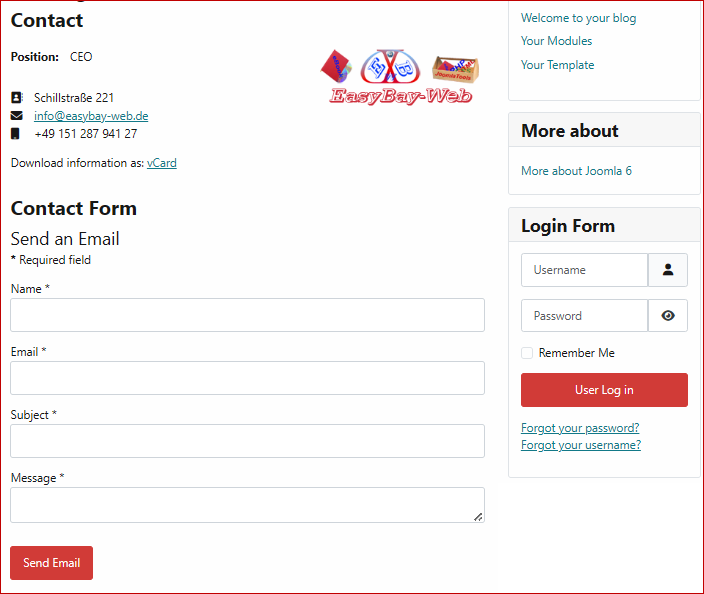
Our contact form now looks like this in the frontend:
However, this is usually not enough, and you often want to integrate or query additional information. Joomla offers custom fields for this purpose. These are available for users, content, and contacts.
However, in the contacts section, for example, while selection and assignment are generally possible, they are not controllable, and positioning is not possible with the standard tools in Joomla.
Therefore, we took on the task and created the EBW-ContactFormPro extension .
Create custom fields for contact forms:
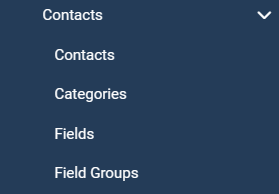
To do this, we first create a field group named "Field group Emails to":
It should be noted that all configurations in the area of custom fields for contact forms must be made under the assignment of emails .
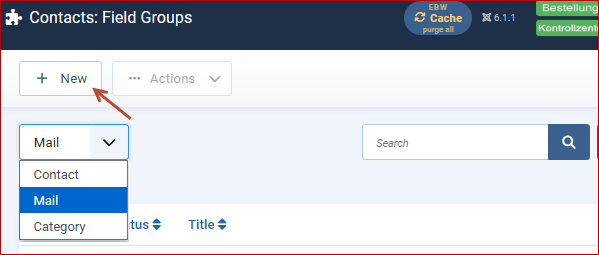
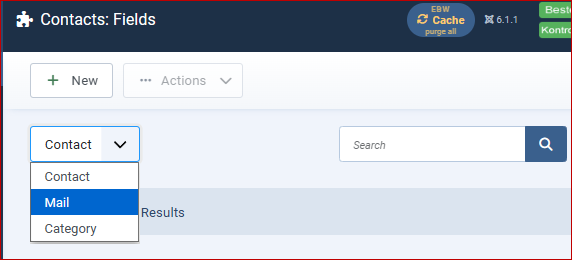
We will provide two examples:
Example order number
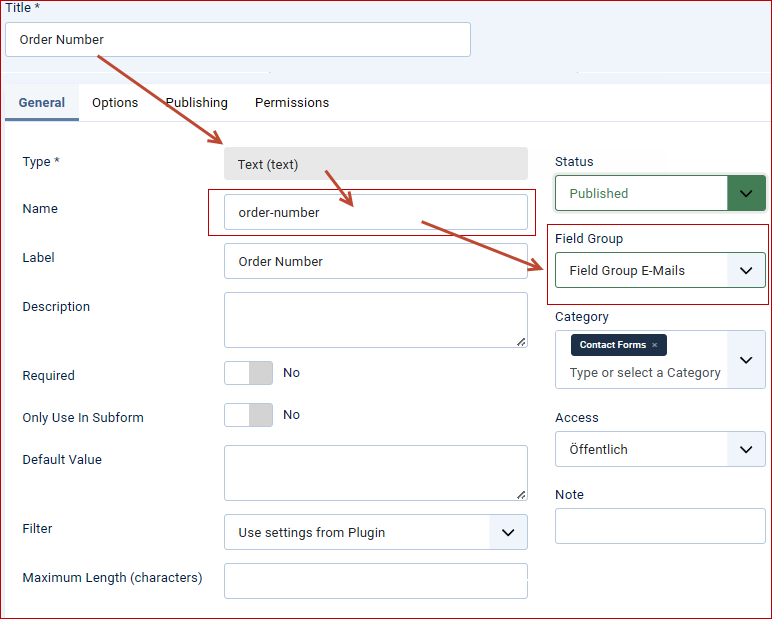
The following are important:
The parameter under Name: here order number; this parameter is used for later field assignment.in EBW ContactForm Proneeded.
The assignments: field group and category.
Example How did you find us?
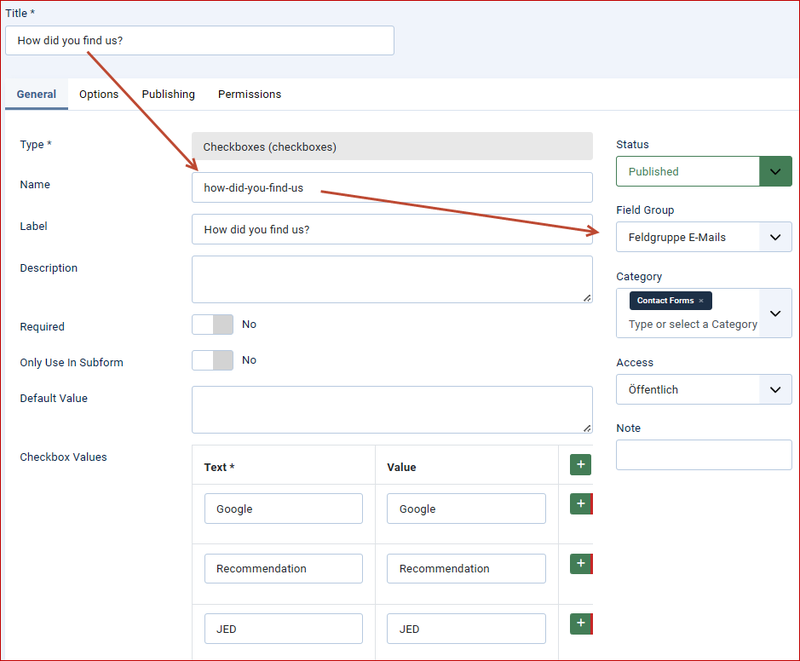
Note the parameter example- checkbox here.
EBW-ContactFormPro extension:
EBW-ContactFormPro extends the Joomla contact component by allowing you to utilize each of the custom fields and position them anywhere within the contact form. Desired fields can be selectively assigned to each contact form.
General overview of the possibilities:
EBW-ContactForm Pro extends the Joomla contact form by adding:
- Flexible field positioning
- Form profiles per contact
- File upload
- Notes & banners directly in the form
- Auto -Reply (also available in multiple languages)
- Honeypot - Spam protection per profile
- Request management in the backend (separate component)
- Installation EBW ContactFormPro:
- Backend → System → Extensions → Install
- Select ZIP package
- Install the package – the system plugin “EBW ContactForm Pro” will be activated automatically.
You then install the frontend layout (override) using the layout override wizard – see below.
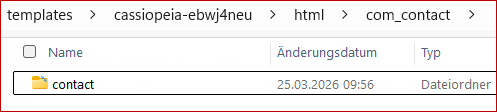
The layout file provided by the wizard controls the display of the .contact forms in the frontend.
Layout Override Wizard:
Layout override for the com_contact form
For each frontend template, you install the ContactForm Pro layout override here. Only after it's installed will the field positions defined in the profile, the upload field, and the honeypot take effect . Updates to the component bring new versions of the template—the wizard will then display 'Outdated,' and you can update with a single click. User changes to the override are detected and never overwritten without confirmation.
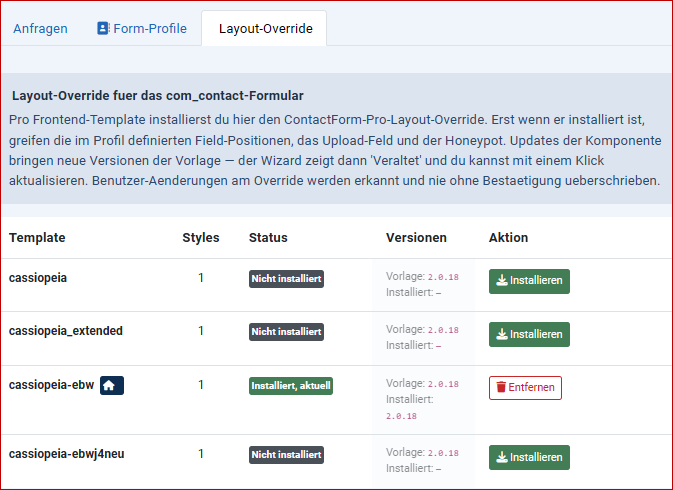
The basic configuration is done in the component:
Under Components → EBW ContactForm Pro, the areas Requests, Form Profiles and Layout Override are available.
Configuration: General, File Storage, License:
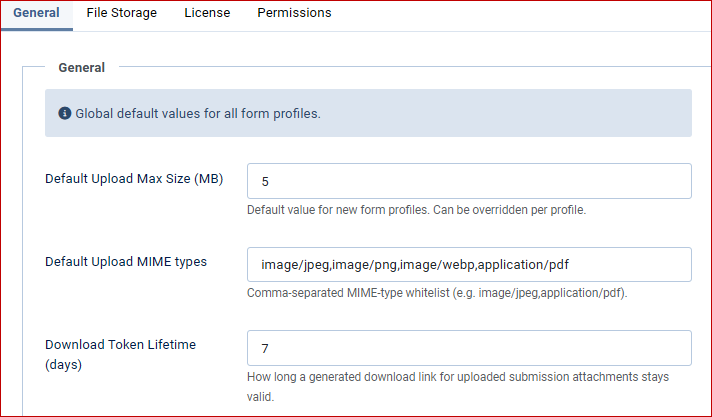
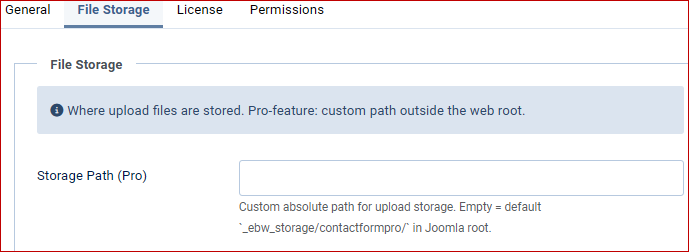
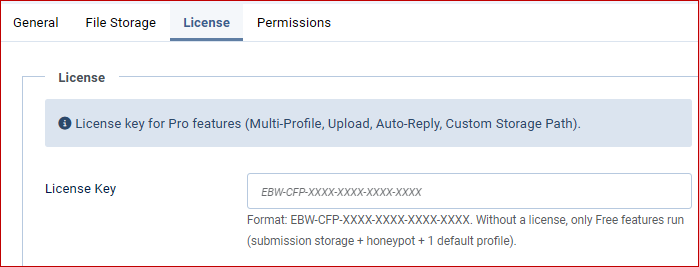
The corresponding system plugin was automatically activated during installation.
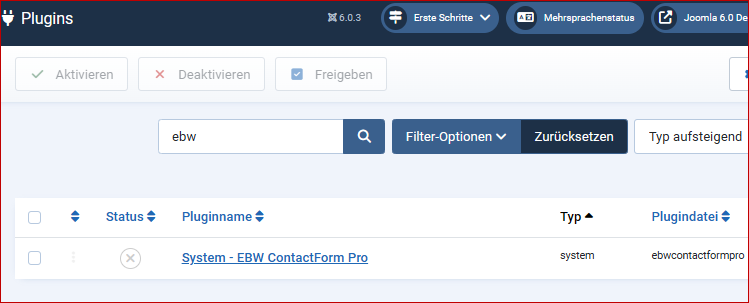
In the plugin section, we can check that it is active:
Then we move on to the area of form profiles.
Here we create a new form profile and assign it to our contact and the fields.
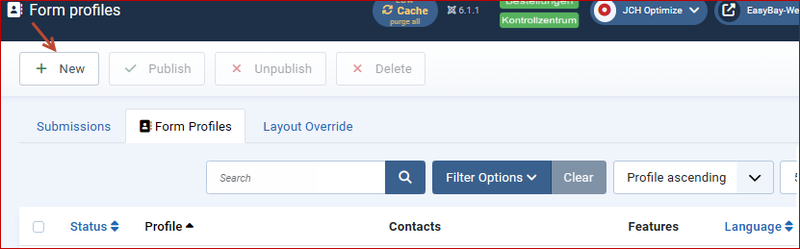
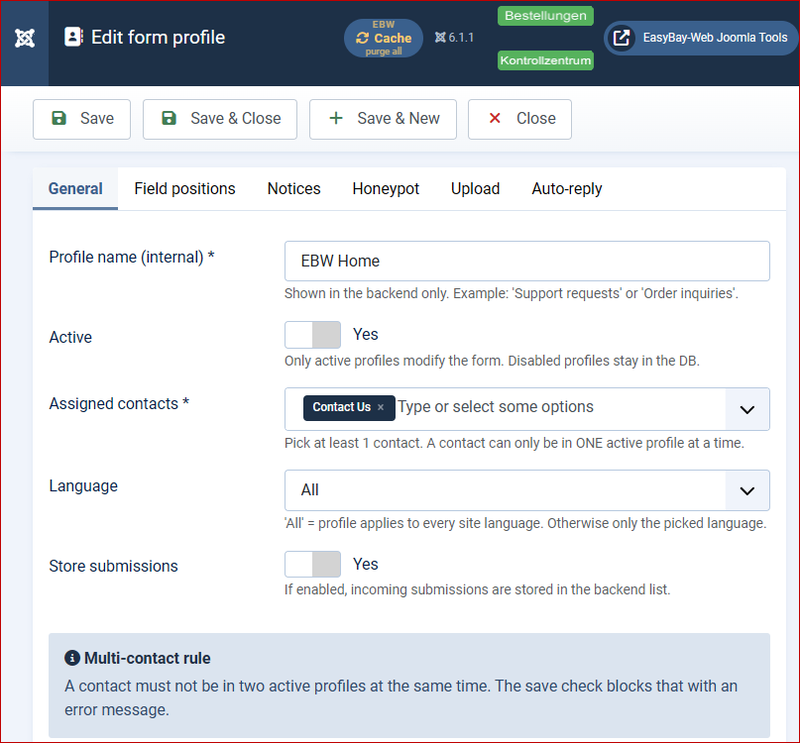
Form profiles:
- Form profiles allow for different forms with different fields and views.
- Profile name ,Active/Inactive, Select contacts
- For each contact, define the desired previously created fields and field positions.
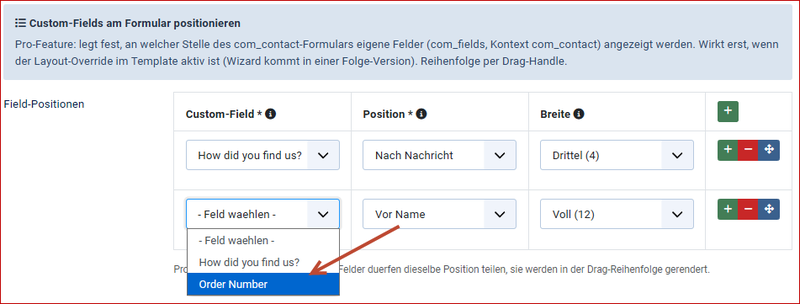
Field positions:
- Order number → Position “Before name”, sequence 12, width “Half”
- Example checkbox → Position “After message”, Order 10, Width “Half”
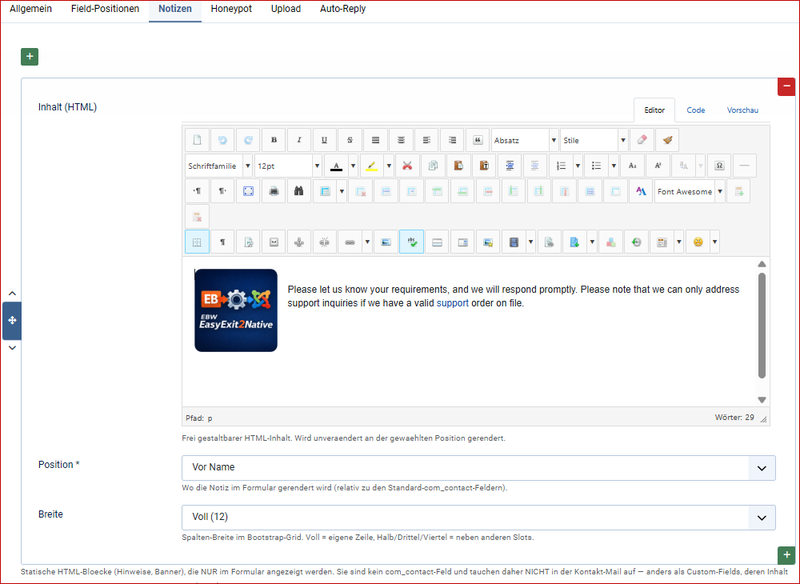
Notes:
Instructions/banner in the form (not in the email)
For banners, privacy notices, or explanations. Notes are only displayed in the form and never included in the email. Important: Banner content belongs here and NOT in a custom field — because Joomla automatically transfers custom field content to the contact email.
For each profile, you can display explanatory text, banners, or HTML blocks at fixed positions in the form – for example, a privacy notice above the submit button. These notes also appear in the notification email.
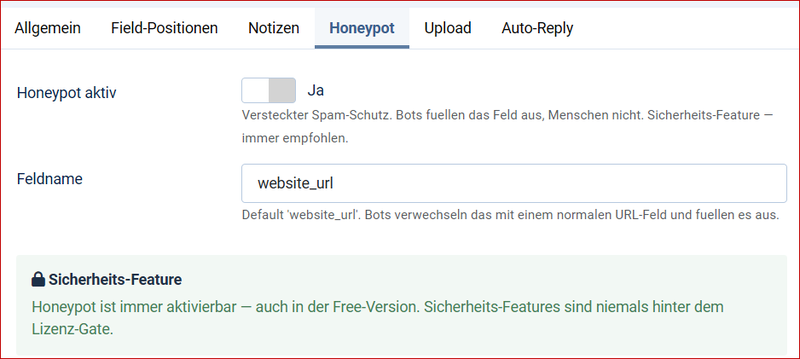
Honeypot:
A honeypot, honey pot or honey pot in English is a device designed to distract an attacker or enemy from the actual target or to draw them into an area that would not otherwise interest them, e.g. in the form of a decoy target.
Upload:
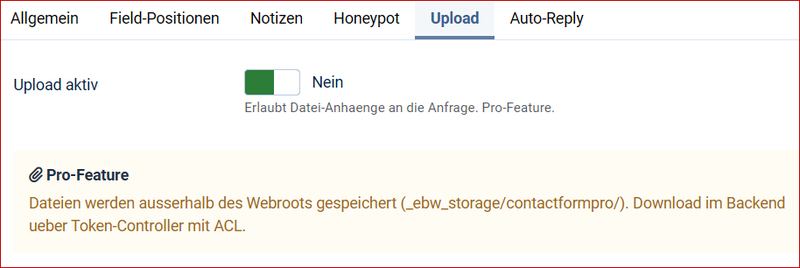
Optional file upload per profile: you define the allowed file types, maximum size, and number of files. Uploaded files are saved and can be attached to the notification email.
Auto-Reply (automatic reply):
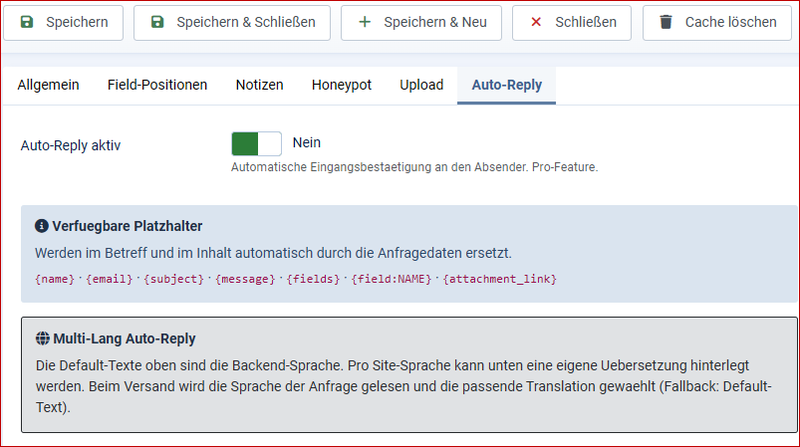
Here you can enter the automatic reply to the sender – in text and/or HTML. The auto-reply can be configured for multiple languages: a separate subject and text for each language, tailored to the sender's language.
General logic:
If no field mappings are set, no user fields will be visible in the selected contact form.
Notification email:
Joomla sends the notification to the website operator via the standard contact email address.
This is what our example form looks like in the frontend:
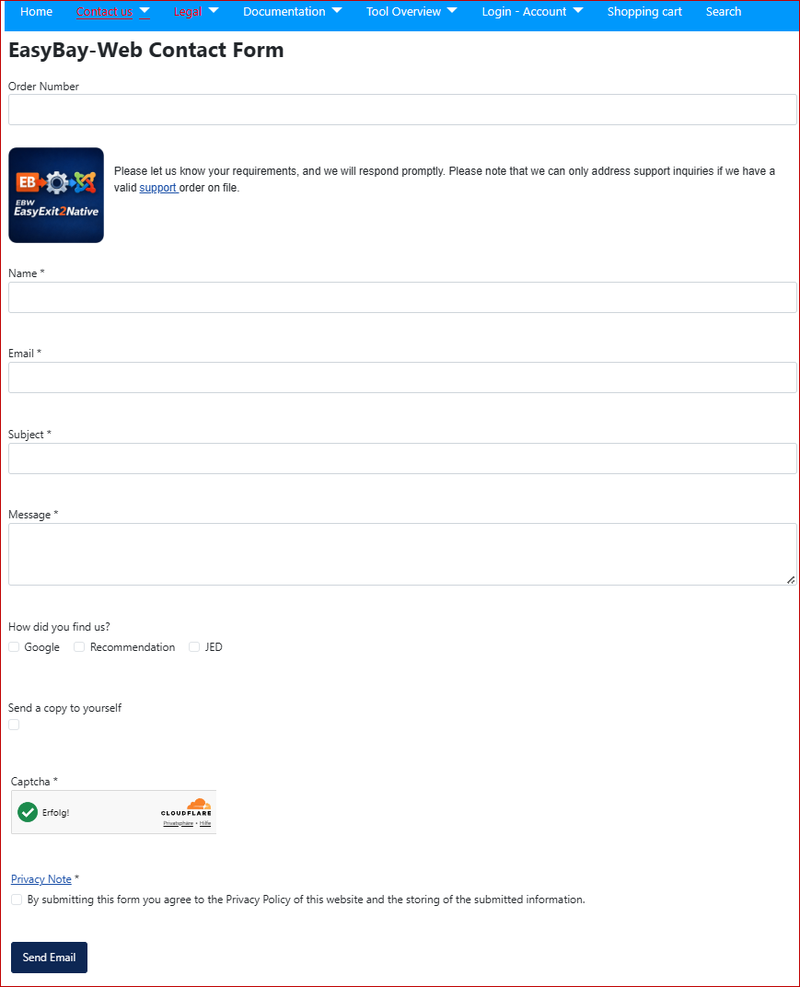
With our extension EBW ContactFormPro, any type of contact form is possible, as every field available in Joomla can be used and positioned individually.
Storage of email inquiries:
The email requests are stored in the database in the table #__ebw_contactformpro_submissions.
EBW ContactFormPro tool has a component for viewing and editing .
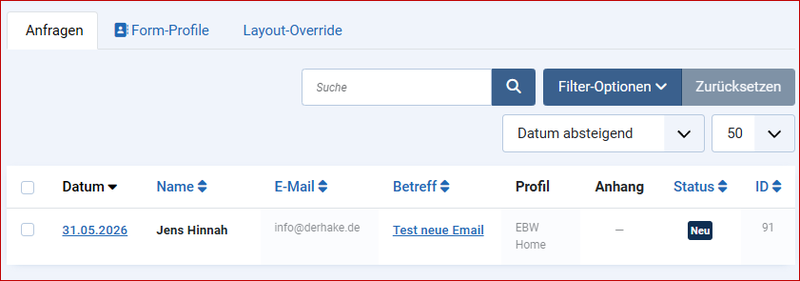
In this component, you can see all requests with their status (new/read), view them, mark them as read, and delete them. Uploaded files are also accessible there.
Field positions in the form profile:
Examples:
- Order number → Position “Before name”, sequence 4, width “Half”
- Example checkbox → Position “After the message”, order 10, width “Half”
Meaning: field name = internal field name:
- position = Position in the form
- order = order within this position
- width = Bootstrap column width
The positions in the contact template are:
- before_name
- after_name
- before_ email
- after_ email
- before_subject
- after_subject
- before_message
- after_message
- before_submit
- after_submit
Width:
- 12 = full width
- 6 = half width
- 4 = one third
- 3 = a quarter
Important:
The fields are assigned via selection lists – internal field names are automatically adopted.
Configuration & License:
- EBW ContactForm Pro is available in a free version and a Pro version.
- Free of charge: storage of requests, honeypot spam protection and a form profile.
- Pros: unlimited form profiles, file upload, multilingual auto-reply, and a configurable storage path for uploads.
You enter the license key (format EBW-CFP-XXXX-XXXX-XXXX-XXXX) in the component's options.